OG images
How to Fix LinkedIn Link Previews (Open Graph for LinkedIn)
June 24, 2026 · 7 min read · Grabbit Team
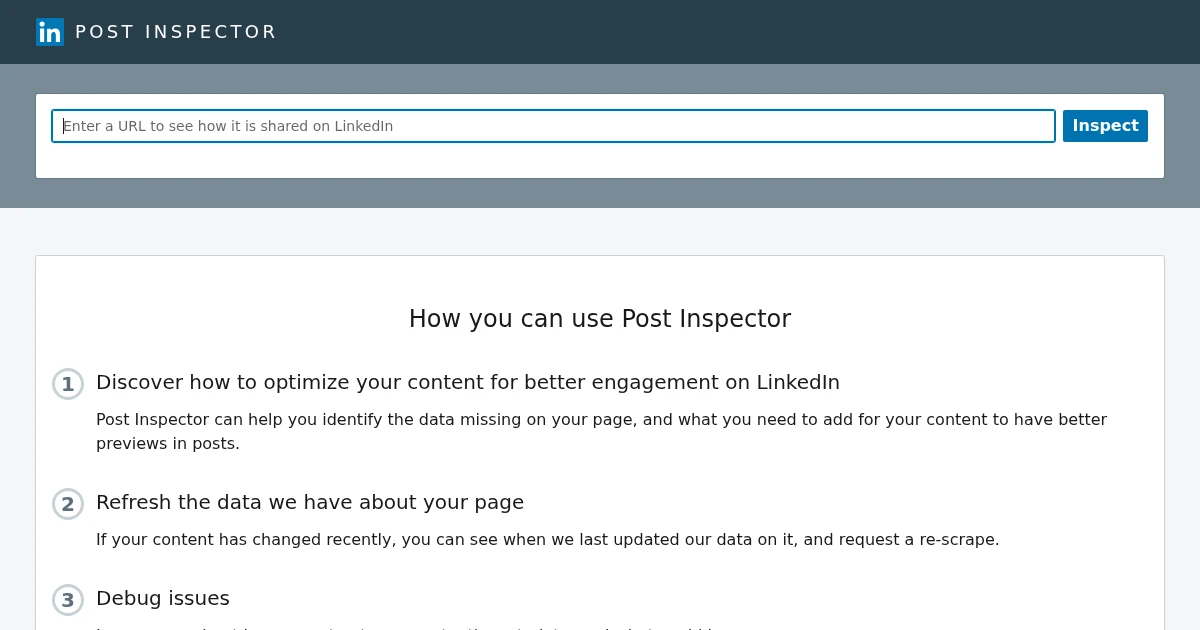
When you paste a link into a LinkedIn post, it should unfurl into a card with a title, a description, and an image. When it shows up bare, or with the wrong image, or as a tiny thumbnail, the cause is almost always the same: the page you linked is missing the Open Graph tags LinkedIn reads, or LinkedIn cached an earlier version before those tags existed. This guide covers the fix, including how to give the card a real image of your page.
How LinkedIn builds a link preview
LinkedIn does not screenshot your page or infer its content. When you paste a URL, LinkedIn fetches the raw HTML and looks for Open Graph meta tags in the <head>. Those tags drive the entire card:
<meta property="og:title" content="Your Page Title" />
<meta property="og:description" content="A one-line summary of the page." />
<meta property="og:image" content="https://yourdomain.com/og.png" />
<meta property="og:url" content="https://yourdomain.com/page" />
og:title and og:description become the text. og:image becomes the picture. If a page has no Open Graph tags, LinkedIn falls back to a bare card with no image, or no card at all. That is what a "broken" preview almost always is: missing or unreadable tags, not a LinkedIn bug.
Two details trip people up:
- LinkedIn reads the raw HTML, not the rendered page. It does not run your JavaScript. If your meta tags are injected client-side (a single-page app that sets them after load), LinkedIn never sees them. The tags must be in the HTML the server sends.
og:imagemust be an absolute, public URL. A relative path like/og.pngwill not resolve, and an image behind a login or a redirect LinkedIn cannot follow renders as no image. Use the fullhttps://yourdomain.com/og.pngand confirm it loads in a private browser window.
How to fix a LinkedIn link preview
Work through this in order:
- Add the four
og:tags above to the page's<head>, server-rendered. - Set
og:imageto an absolute, public URL that returns an actual image, not an HTML page. - Use a 1200 by 627 image. That is the 1.91 to 1 ratio LinkedIn renders as a large card. LinkedIn's own guidance cites 1200 by 627; the common 1200 by 630 works identically.
- Confirm the tags are in the served HTML. View source on the live URL (or
curlit) and check the tags are present before any JavaScript runs. - Re-scrape with Post Inspector. LinkedIn caches per URL, so a change to your tags will not show until LinkedIn fetches the page again (more on this below).
The one part that is more work than typing four meta tags is producing the image itself, especially if you want it to reflect the actual page rather than a generic logo.
Making the og:image a real render of your page
For a marketing page, a docs page, or a launch announcement, the best preview image is often a clean shot of the page itself. You can produce that with a screenshot API: point it at the URL, get back a hosted image, and use that image as your og:image.
curl https://api.grabbit.live/v1/grabs \
  -H "Authorization: Bearer sk_live_..." \
  -H "Content-Type: application/json" \
  -d '{
    "url": "https://yourdomain.com/og",
    "width": 1200,
    "height": 627,
    "format": "png",
    "delay_ms": 500
  }'
The response includes a hosted image_url:
{
  "id": "grb_01jx...",
  "status": "done",
  "image_url": "https://cdn.grabbit.live/grabs/grb_01jx....png",
  "width": 1200,
  "height": 627,
  "format": "png",
  "bytes": 71240,
  "execution_ms": 1240
}
width accepts 320 to 1920 and height 240 to 1080, so the 1200 by 627 LinkedIn card is in range. delay_ms (0 to 10000) gives client-rendered content or web fonts a moment to settle before the capture fires. Drop the returned image_url into your tag:
<meta property="og:image" content="https://cdn.grabbit.live/grabs/grb_01jx....png" />
Capture once per unique page and cache the image_url alongside the page record rather than rendering on every request. A common pattern is to build a dedicated /og route with your normal components, capture that, and reuse the result everywhere. The same template-and-cache approach is covered in how to generate dynamic OG images from any URL.
The upside of one correct og:image is reach: LinkedIn, Facebook, X, Discord, and Slack all read the same 1200 by 627 Open Graph image, so a single tag fixes the preview everywhere at once. The platform-specific steps differ only in how you refresh the cache, which is the next section.
Refresh the cache with LinkedIn Post Inspector
This is the step people miss. LinkedIn stores the metadata it scraped the first time a URL was shared. If you shared a link before adding your tags (or with the wrong image), editing the tags will not update the preview on its own. LinkedIn keeps serving the old, cached version.
The fix is Post Inspector, LinkedIn's free debugger:
- Open Post Inspector and paste the URL.
- It re-scrapes the live page and shows you exactly which
og:tags it read, plus a rendered preview of the card. - The act of inspecting clears LinkedIn's cache for that URL, so the next time you share it, the corrected preview appears.
Post Inspector is also the fastest way to confirm a fix worked: if the tags you set show up there and the preview image renders, you are done. If a tag is missing or the image is blank in Post Inspector, the problem is on the page, not on LinkedIn.
If for some reason you cannot use Post Inspector, append a unique query string such as ?v=2 to the URL when you paste it. LinkedIn treats it as a new URL with no cache entry and scrapes fresh.
Why your preview still is not showing
If the tags are present, the image URL works in a browser, and you have re-scraped with Post Inspector but the card still looks wrong, run through these:
- The image is behind auth or a redirect. If
og:imagerequires a login, sits behind a paywall, or redirects in a way LinkedIn will not follow, the card renders without an image. Test the raw image URL in a private window. - Tags are set by JavaScript. LinkedIn reads static HTML and does not execute scripts. Server-render the meta tags.
- The image is too small or the wrong shape. Below the 1.91 to 1 card ratio, LinkedIn may show a small square thumbnail beside the text instead of a full-width image. Use 1200 by 627.
- You are sharing a link-only post and expecting the old large card. LinkedIn changed how external link previews render in feed; the image can appear smaller than it used to. A correct 1200 by 627
og:imagestill gives you the best card LinkedIn will show.
Work top to bottom: re-scrape with Post Inspector first (it is the most common fix), then verify the image is public, then confirm the tags are server-rendered.
The short version
A LinkedIn link preview is just your page's Open Graph tags, rendered as a card. Add og:title, og:description, og:image, and og:url server-side; make og:image an absolute, public, 1200 by 627 URL; then run the page through Post Inspector to force LinkedIn to re-scrape. If you want the image to be a real render of the page instead of a static logo, a screenshot API turns the live URL into the hosted image you point og:image at. The same approach fixes Facebook link previews and Discord link previews, and if you are new to the format, start with what is an OG image.
FAQ
- How do I get a link preview on LinkedIn?
- Add Open Graph meta tags to the page you are sharing: og:title, og:description, og:image, and og:url in the HTML head. LinkedIn fetches those tags when you paste the URL and builds the preview card from them. The og:image must be an absolute URL (https://yourdomain.com/og.png), publicly reachable, and ideally 1200 by 627 pixels at a 1.91 to 1 ratio. Paste the link in the composer and allow a few seconds for the preview image to display.
- Why is LinkedIn not showing a link preview?
- The usual causes are: the page has no og:image tag (or it points at a relative or broken URL), the image sits behind auth or a redirect LinkedIn cannot follow, the tags are set by JavaScript (LinkedIn reads the raw HTML and does not run JS), or LinkedIn cached an earlier version of the page that had no tags. Run the URL through LinkedIn Post Inspector to see exactly which tags LinkedIn reads and to force a fresh scrape.
- What size should a LinkedIn link preview image be?
- Use 1200 by 627 pixels, the 1.91 to 1 ratio LinkedIn renders as a large preview card. This is effectively the same 1200 by 630 size that works for Facebook, X, Discord, and Slack, so one og:image covers every platform. Smaller images may show as a small thumbnail beside the text instead of a full-width card.
- How do I refresh a LinkedIn link preview after changing my OG tags?
- LinkedIn caches the metadata it scraped the first time a URL was shared, so editing your tags will not update an existing preview on its own. Open LinkedIn Post Inspector, paste the URL, and it re-scrapes the page and clears the cache. After that the corrected preview appears when you share the link. If you cannot wait for the cache, append a unique query string such as ?v=2 to the URL so LinkedIn treats it as new.
- Can I change the LinkedIn preview image without editing my page?
- As a Page admin you can customize the preview image and title for a specific post directly in the composer, but that only affects that one post. To fix the preview everywhere and for everyone who shares the link, set the og:image and og:title on the page itself. Editing the source tags is the durable fix; per-post editing is a one-off override.
Capture any website with one API call
Get a free test key and capture your first screenshot in two minutes.
Written by
Grabbit Team
Screenshots as a service
The team behind Grabbit, the screenshot API for developers and AI agents. We write about web capture, rendering, and automating screenshots at scale.
Keep reading
Discord Link Previews: How to Make Your Links Unfurl
Why your links show up bare in Discord and how to fix it: add the right Open Graph tags, point og:image at a real 1200x630 render, and force Discord to re-fetch the metadata.
Jun 21, 2026 · 6 min read
What Is an OG Image? Why Your Shared Links Look Broken
An OG image is the preview image that appears when a link is shared on social media. Learn what it is, why it breaks, and how to automate one per page.
Jun 13, 2026 · 5 min read
How to Generate Dynamic OG Images from Any URL
Generate a unique Open Graph image for every page by pointing a screenshot API at your HTML template. One template, zero design work, scales to any number of pages.
Jun 12, 2026 · 4 min read