Capture guides
How to Convert a Webpage to an Image (URL to JPG, PNG, or WebP)
July 1, 2026 · 6 min read · Grabbit Team
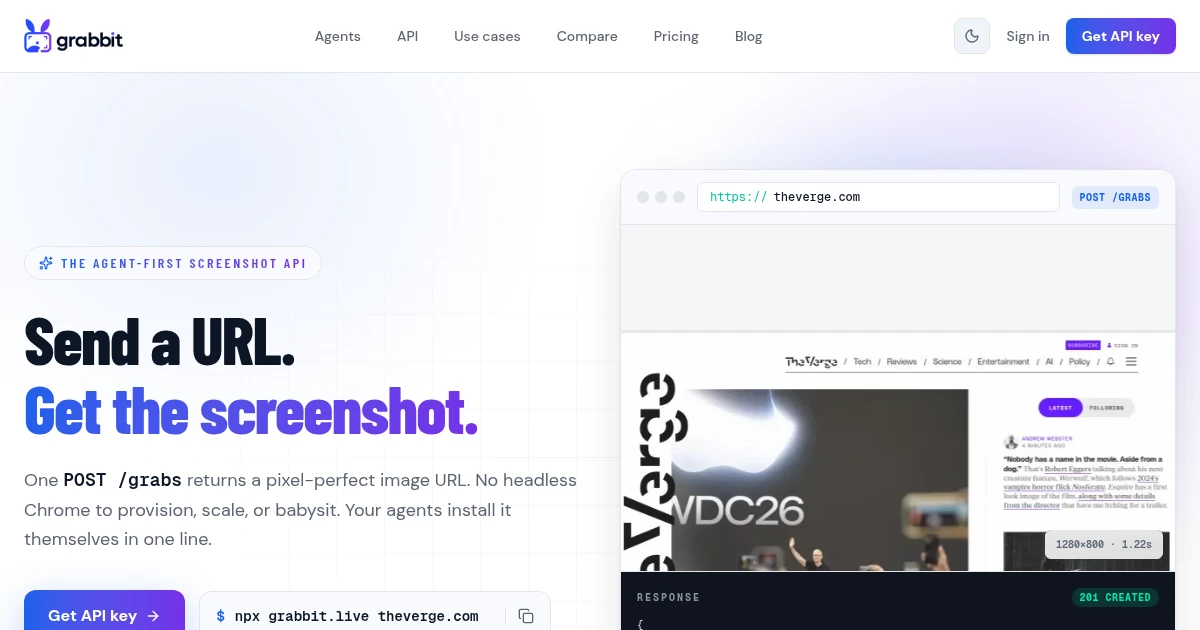
To convert a webpage to an image, send the page URL to a screenshot API and it returns a hosted JPG, PNG, or WebP. One HTTP request in, one image URL out. The headless browser that does the rendering runs in the cloud, so there is no converter to install and no local Chrome to babysit.
That is the fast path. Below are the approaches that work, when each one fits, and how to get the format, dimensions, and full-page options right.
The quick answer
If you just want a URL turned into an image from your code, this is the whole thing:
curl https://api.grabbit.live/v1/grabs \
  -H "Authorization: Bearer sk_live_..." \
  -H "Content-Type: application/json" \
  -d '{
    "url": "https://example.com",
    "width": 1280,
    "height": 720,
    "format": "webp"
  }'
The response is JSON with a hosted image_url:
{
  "id": "grb_01jx...",
  "status": "done",
  "target_url": "https://example.com",
  "image_url": "https://cdn.grabbit.live/grabs/grb_01jx....webp",
  "width": 1280,
  "height": 720,
  "format": "webp",
  "bytes": 62140,
  "execution_ms": 940,
  "created_at": "2026-07-01T09:00:00.000Z"
}
Store that image_url, embed it, or hand it to another service. The rest of this guide is about picking the right tool and the right options.
Manual versus programmatic
"Convert a webpage to an image" splits into two very different jobs, and the right tool depends on which one you have.
Manual, one-off. You are looking at a page and want to save it as a JPG. Your browser already does this. In Chrome or Edge, open the command menu with Ctrl+Shift+P (Cmd+Shift+P on Mac), type "screenshot," and choose "Capture full size screenshot." No tool required. Free online converters like Web2PDF Convert or CloudConvert do the same thing through a form: paste a URL, download the image.
Programmatic, repeatable. You need to convert pages to images from code, on a schedule, or across many URLs. This is where the manual path falls apart: you cannot click a browser menu inside a cron job, a CI pipeline, or a webhook handler. You need an endpoint you can call.
This guide is about the second job. If you only need a one-off image, use the browser shortcut above and move on.
Converting a webpage to an image with an API
For anything repeatable, a screenshot API is the shortest path. You already saw the curl call. Here is the same request in a few languages, since "how do I do this in my stack" is the real question.
Python, using requests:
import requests

resp = requests.post(
    "https://api.grabbit.live/v1/grabs",
    headers={"Authorization": "Bearer sk_live_..."},
    json={
        "url": "https://example.com",
        "width": 1280,
        "height": 720,
        "format": "webp",
    },
)
data = resp.json()
print(data["image_url"])
Node.js, using the built-in fetch:
const resp = await fetch('https://api.grabbit.live/v1/grabs', {
  method: 'POST',
  headers: {
    Authorization: 'Bearer sk_live_...',
    'Content-Type': 'application/json',
  },
  body: JSON.stringify({
    url: 'https://example.com',
    width: 1280,
    height: 720,
    format: 'webp',
  }),
});
const data = await resp.json();
console.log(data.image_url);
Every one of these is a plain HTTP call. No chromedriver, no 300 MB Chromium download, no async browser session to tear down afterward. That is the whole reason to reach for an API over a local converter: the rendering machinery lives somewhere else.
Choosing PNG, JPEG, or WebP
The format field takes png, jpeg, or webp. They are not interchangeable, and picking wrong means either bloated files or lost quality.
- WebP is the best default. For a typical webpage render it produces the smallest file at the same visual quality, which adds up fast when you store and serve thousands of images. Use it unless you have a specific reason not to.
- PNG is lossless and supports transparency. Reach for it when exact pixel fidelity matters, for example a baseline image in a visual regression test.
- JPEG is the safest bet for compatibility with older tooling that predates WebP. It is lossy, so text edges soften slightly.
Switching format is a one-word change in the request body, so you can experiment without rewriting anything.
Capturing the full page, not just the viewport
By default a capture stops at the viewport height you request. To convert the entire scrollable page into one tall image, set full_page to true:
curl https://api.grabbit.live/v1/grabs \
  -H "Authorization: Bearer sk_live_..." \
  -H "Content-Type: application/json" \
  -d '{
    "url": "https://example.com",
    "width": 1280,
    "full_page": true,
    "format": "webp"
  }'
With full_page on, height is ignored and the render extends to the bottom of the document. This is the option you want for archiving a whole article, a long landing page, or anything below the fold. The full-page screenshot guide covers the edge cases (lazy loading, sticky headers) in more depth.
width must be between 320 and 1920 pixels; height between 240 and 1080. If the page renders content client-side after load, add "delay_ms": 1500 to wait before the capture fires, or "selector": "#main" to wait for a specific element to appear.
When a local converter or library is the better call
An API is not always the answer. Skip it and render locally when:
- You already have a full HTML string, not a URL. If the markup lives in your app and never gets served at an address, a client-side library such as
html2canvas, or a localpage.screenshot()in Puppeteer, avoids a round trip. Note thathtml2canvasreads the existing DOM and does not execute scripts, so it misses dynamically loaded content. See HTML to image for that pattern, including the trick of hosting your template at a URL and then capturing it. - You are doing a single manual capture. Use the browser shortcut from earlier.
- You cannot make outbound requests. In an air-gapped environment an API is off the table, so a bundled headless browser is the only option.
For everything else, especially anything that runs on a schedule or in CI, the API path keeps your deployment small and removes an entire class of "it works locally but not in the container" failures.
Next steps
The automated screenshots guide covers scheduling, async jobs, and webhooks for turning many URLs into images in a pipeline. For capturing pages that extend past the viewport, see the full-page screenshot guide, and for rendering your own markup, HTML to image.
FAQ
- How do I convert a webpage to an image?
- Send the page URL to a screenshot API and it returns a hosted image. One POST request with the target URL gives you back an image_url pointing at a JPG, PNG, or WebP render of the page. The headless browser runs in the cloud, so there is nothing to install locally and nothing to keep alive.
- What image format should I use for a webpage screenshot?
- WebP is the best default: it produces the smallest file for the same visual quality, which matters when you store and serve renders at scale. Use PNG when you need lossless output or transparency, and JPEG when you need the widest compatibility with older tools. A screenshot API lets you pick per request with a format field.
- How do I convert a webpage to an image programmatically?
- POST the URL to a screenshot API from any language that can make an HTTP request. Pass the URL, dimensions, and format in the JSON body and your API key in the Authorization header. The response includes an image_url you can store in a database or serve directly. No browser binary, no chromedriver, no converter to maintain.
- Can I convert a full webpage, not just the visible part, to an image?
- Yes. Set full_page to true and the capture extends to the full scrollable height of the page instead of stopping at the viewport. The result is one tall image that includes everything below the fold, exactly as it renders in a real browser.
- Does converting a webpage to an image work on JavaScript-heavy pages?
- It works if the service runs a real browser rather than parsing the raw HTML. A screenshot API that renders headless Chromium executes JavaScript fully, so single-page apps and lazy-loaded content look the same as they do in a browser. Add a delay_ms value to wait for client-side content to appear before the capture fires.
Capture any website with one API call
Get a free test key and wire your first request in two minutes.
Written by
Grabbit Team
Screenshots as a service
The team behind Grabbit, the screenshot API for developers and AI agents. We write about web capture, rendering, and automating screenshots at scale.
Keep reading
How to Screenshot a Website from a URL (No Browser Needed)
Skip the headless browser setup. Learn the three ways to capture a screenshot from a URL, and when a screenshot API beats Puppeteer or Playwright for production workloads.
Jun 15, 2026 · 7 min read
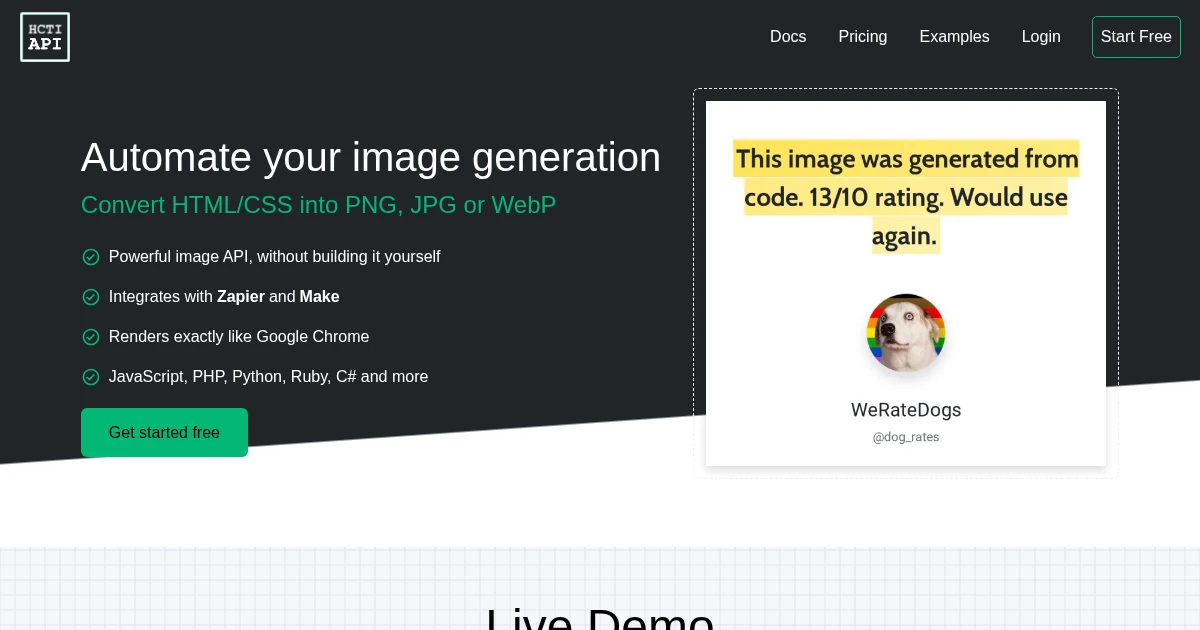
HTML to Image: How to Render HTML to PNG, JPG, or WebP
Three ways to turn HTML into an image: a client-side DOM library, an online converter, and a screenshot API that renders your HTML at a URL and returns a hosted PNG, JPG, or WebP.
Jun 22, 2026 · 6 min read
How to Screenshot an Entire Web Page on Any Device
A practical guide to capturing full-page screenshots on Windows, Mac, iPhone, Android, and in code. One API call handles any device or environment.
Jun 17, 2026 · 5 min read