Capture guides
How to Screenshot a Website from a URL (No Browser Needed)
June 15, 2026 · 7 min read · Grabbit Team
Every approach to capturing a screenshot from a URL falls into one of three categories: call an API, run a local headless browser, or use a client-side library. Each has a different setup cost, maintenance burden, and failure mode. Here is how to pick the right one and use it correctly.
The three approaches
Screenshot API. You send a POST request with the target URL and receive a hosted image URL in the response. The headless browser runs in the cloud. No binaries to install, no drivers to version-match, no infrastructure to keep alive.
Puppeteer or Playwright. You launch headless Chrome locally, navigate to the URL, and call .screenshot(). Full control, but you own the Chromium binary, the Node.js process, and every failure mode that comes with them.
html2canvas. Runs in the browser and serializes what is already in the DOM to a canvas. Works only client-side and misses content loaded by JavaScript after the initial render.
For server-side, automated, or high-volume capture, the API path is almost always the right call. For local dev scripts where you already have Node.js set up, Puppeteer and Playwright work well. html2canvas is the only viable option when you need a screenshot of what a user is looking at inside a browser tab.
Using a screenshot API
One POST request captures any public URL:
curl https://api.grabbit.live/v1/grabs \
  -H "Authorization: Bearer sk_live_..." \
  -H "Content-Type: application/json" \
  -d '{
    "url": "https://example.com",
    "width": 1280,
    "height": 720,
    "format": "webp"
  }'
The response includes a hosted image_url you can store and serve directly:
{
  "id": "grb_01jx...",
  "status": "done",
  "target_url": "https://example.com",
  "image_url": "https://cdn.grabbit.live/grabs/grb_01jx....webp",
  "width": 1280,
  "height": 720,
  "format": "webp",
  "bytes": 62140,
  "execution_ms": 940,
  "created_at": "2026-06-15T09:00:00.000Z"
}
Width must be between 320 and 1920 pixels; height between 240 and 1080. Format options are png, jpeg, and webp (webp is the best default for file size). Set "full_page": true to capture the full scrollable height instead of the viewport. Add "delay_ms": 1000 if the page loads content client-side before it is visible.
The same call in Python, no browser required:
import requests

resp = requests.post(
    "https://api.grabbit.live/v1/grabs",
    headers={"Authorization": "Bearer sk_live_..."},
    json={
        "url": "https://example.com",
        "width": 1280,
        "height": 720,
        "format": "webp",
    },
)
data = resp.json()
print(data["image_url"])
No chromedriver, no binary downloads, no async process to tear down after the call.
Using Puppeteer
Puppeteer gives you direct control of Chromium at the cost of managing the binary yourself:
import puppeteer from 'puppeteer';

const browser = await puppeteer.launch();
const page = await browser.newPage();
await page.setViewport({ width: 1280, height: 720 });
await page.goto('https://example.com', { waitUntil: 'networkidle2' });
await page.screenshot({ path: 'screenshot.png' });
await browser.close();
Puppeteer ships Chromium at around 300 MB. It works well for local scripts, but deploying it to serverless runtimes or CI agents that lack the right system libraries is a recurring headache. See full-page screenshots with Puppeteer for the fullPage: true option and the tradeoffs versus an API.
Using Playwright
Playwright's API is nearly identical and adds Firefox and WebKit support:
import { chromium } from 'playwright';

const browser = await chromium.launch();
const page = await browser.newPage();
await page.setViewportSize({ width: 1280, height: 720 });
await page.goto('https://example.com');
await page.screenshot({ path: 'screenshot.png', fullPage: true });
await browser.close();
Playwright's waitForSelector and waitForLoadState options give it a slight edge for pages with delayed content. The infrastructure burden is the same as Puppeteer.
When to use which
| Scenario | Best choice |
|---|---|
| Production automation or CI | Screenshot API |
| Serverless function | Screenshot API |
| Bulk capture of many URLs | Screenshot API with async mode |
| Local dev script or one-off audit | Puppeteer or Playwright |
| Capture existing browser content (client-side) | html2canvas |
Adding a headless browser process to a server that already handles your application workload is a maintenance burden. The API separates the capture concern entirely and keeps your deployment small.
Capturing multiple URLs
For bulk jobs, pass Prefer: respond-async to queue the capture without waiting for it to finish:
import requests

urls = [
    "https://example.com",
    "https://example.com/about",
    "https://example.com/pricing",
]

for url in urls:
    resp = requests.post(
        "https://api.grabbit.live/v1/grabs",
        headers={
            "Authorization": "Bearer sk_live_...",
            "Prefer": "respond-async",
        },
        json={"url": url, "width": 1280, "height": 720, "format": "webp"},
    )
    job = resp.json()
    print(job["id"], job["status"])  # poll GET /api/v1/grabs/{id} until "done"
Prefer: respond-async returns 202 immediately with a job ID. Poll GET /api/v1/grabs/{id} until status is "done", then read image_url. You can queue up to 10 concurrent jobs per team.
Waiting for dynamic content
If the target page loads content after the initial HTML is served, a plain page.goto or an instant API call may fire before the content is visible. Two options:
"delay_ms": 1500waits a fixed number of milliseconds after the page loads before capturing. Simple, but guesswork."selector": "#main-content"waits until that element is present in the DOM. Tied to a real content signal, not an arbitrary timer.
For pure server-rendered pages with no client-side hydration, neither is needed.
Screenshotting a page that blocks extension capture
A common frustration: a browser extension like GoFullPage refuses to capture a page, or the layout breaks the capture. That happens because extensions run inside the page's own tab, so the site's CSS, iframes, and content-security rules can interfere.
A URL-based approach sidesteps that entirely. The service loads the page in its own headless Chromium the way a normal visitor would, then renders what the browser paints. There is no in-page extension for the site to trip up.
curl https://api.grabbit.live/v1/grabs \
  -H "Authorization: Bearer sk_live_..." \
  -H "Content-Type: application/json" \
  -d '{
    "url": "https://example.com/report",
    "width": 1440,
    "full_page": true,
    "delay_ms": 1500,
    "format": "png"
  }'
Two honest limits. This only works on pages reachable over the public internet, so a page behind your own login is out unless you can hand the request the right session. And a URL-based capture is not a way around a site's terms of use or a hard bot wall that refuses all automated visitors: only capture pages you have the right to. What it does solve is the everyday case where an extension-based capture fails on a page you can already open in a browser.
Screenshotting a URL behind a cookie or consent banner
The other everyday reason a URL capture looks wrong: a cookie or GDPR consent banner sits on top of the page, so the screenshot shows the overlay instead of the content. This is common on news sites and anything that serves European traffic.
A hosted capture handles the usual banners on its own, because it loads the page in a full Chromium that dismisses the standard consent dialogs the way a normal visit would. When a stubborn overlay remains, the fix is the same wait-and-target controls you would use for any late-loading element. Give the page a moment to settle, then capture:
curl https://api.grabbit.live/v1/grabs \
  -H "Authorization: Bearer sk_live_..." \
  -H "Content-Type: application/json" \
  -d '{
    "url": "https://example.com/article",
    "width": 1280,
    "full_page": true,
    "delay_ms": 2000,
    "format": "webp"
  }'
If the content you actually want sits in a specific region, "selector": "#article-body" clips the capture to that element and skips the surrounding chrome entirely, banner included. That is the reliable way to get the content, not the overlay, without scripting a click on a consent button that moves every time the site redesigns.
Next steps
The automated screenshots guide covers scheduling, webhooks, and the async job queue for production capture pipelines. For capturing pages that extend beyond the viewport, see the full-page screenshot guide.
FAQ
- Can I take a screenshot of a URL without installing a browser?
- Yes. A screenshot API runs a headless browser in the cloud and returns the rendered image. You send one POST request with the target URL and get back a hosted image URL. No browser binary, no WebDriver, no dependency management on your machine.
- What is the difference between a screenshot API and Puppeteer?
- Puppeteer and Playwright run a local headless Chrome process that you control with code. A screenshot API packages that browser work into a managed cloud service: you call an HTTP endpoint and receive an image URL. APIs are faster to integrate and simpler to maintain in CI and production, but require an internet connection and consume API credits.
- How do I screenshot a URL in Python without Selenium?
- POST to a screenshot API with Python's requests library. Pass the target URL in the JSON body and your API key in the Authorization header. The response includes an image_url pointing to the hosted screenshot. No browser drivers, no chromedriver version mismatches, no async browser sessions to manage.
- How do I screenshot a website from a URL in Node.js?
- Use the fetch API or axios to POST to a screenshot API endpoint with the URL, dimensions, and format in the request body. The API returns a JSON response with an image_url field. No Puppeteer binary and no process management required.
- Does URL-based screenshot capture work on JavaScript-rendered pages?
- Yes, if the screenshot service runs a real browser. Tools like html2canvas only read the existing DOM without executing scripts and miss dynamically loaded content. A screenshot API that runs headless Chromium renders JavaScript fully, so single-page apps look the same as they do in a real browser. Add a delay_ms parameter to wait for client-side content to appear before the capture fires.
Capture any website with one API call
Get a free test key and capture your first screenshot in two minutes.
Written by
Grabbit Team
Screenshots as a service
The team behind Grabbit, the screenshot API for developers and AI agents. We write about web capture, rendering, and automating screenshots at scale.
Keep reading
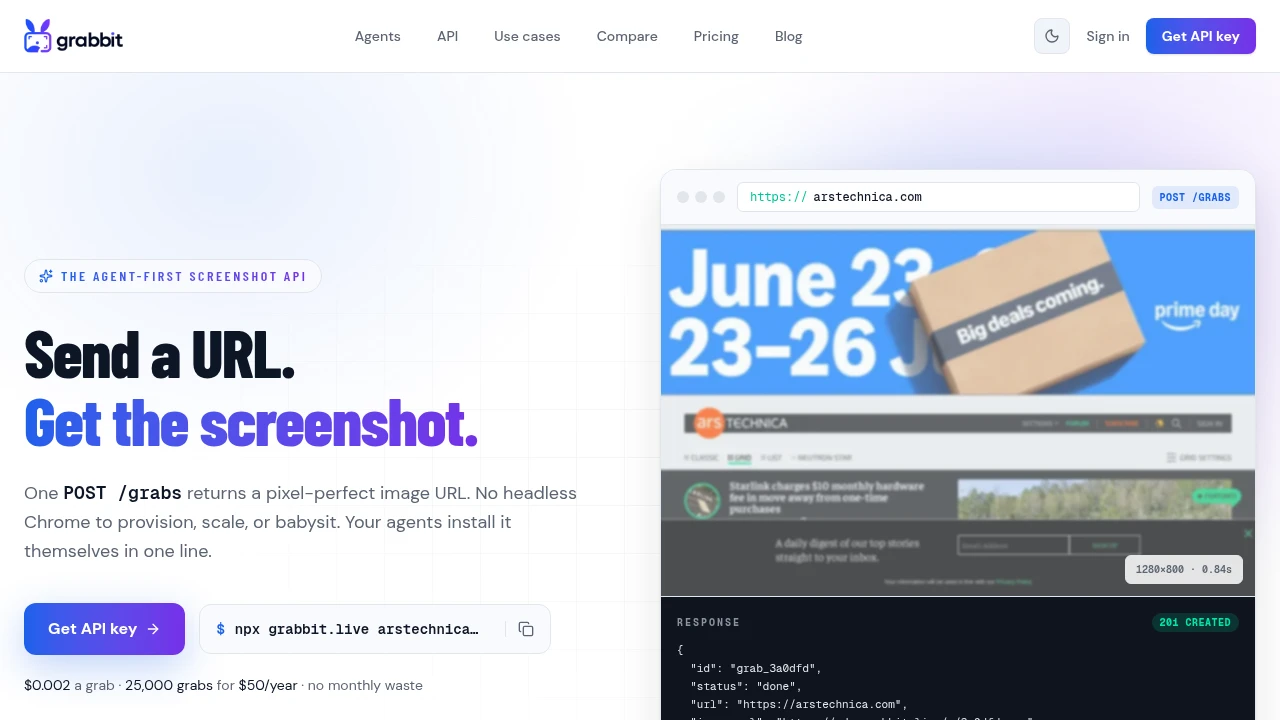
How to Take a Full-Page Screenshot (Every Method That Works in 2026)
How to take a full-page screenshot on Chrome, Firefox, Edge, Windows, Mac, iPhone, and Android, plus how to capture full pages automatically with an API.
Jun 10, 2026 · 4 min read
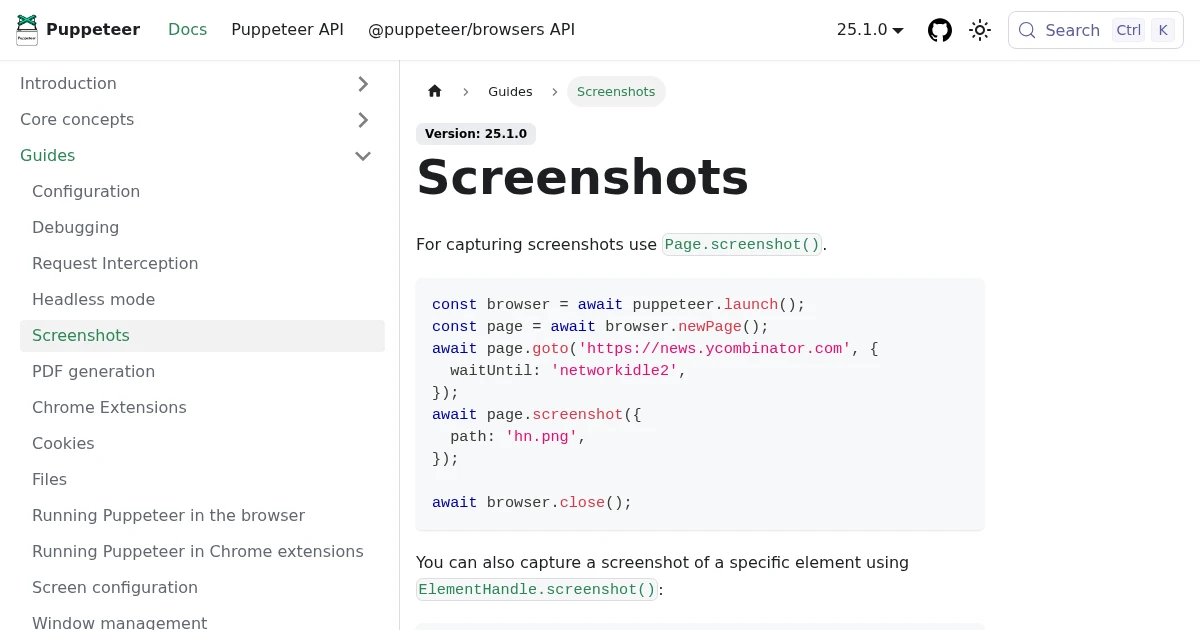
Full-Page Screenshots in Puppeteer (and When an API Is Faster)
How to take screenshots in Puppeteer: full page, specific elements, and high quality. Plus the failure modes that make people switch to a hosted screenshot API.
Jun 12, 2026 · 5 min read
HTML to PNG: How to Render HTML to a PNG Image (URL to PNG via API)
Render HTML to a PNG the reliable way: host your HTML or template at a URL, then capture it with one API call. Why PNG over JPG or WebP, and the honest limits of turning a raw HTML string into an image.
Aug 4, 2026 · 5 min read