Capture guides
How to Capture a Full-Page Screenshot in Google Chrome
June 13, 2026 · 4 min read · Grabbit Team
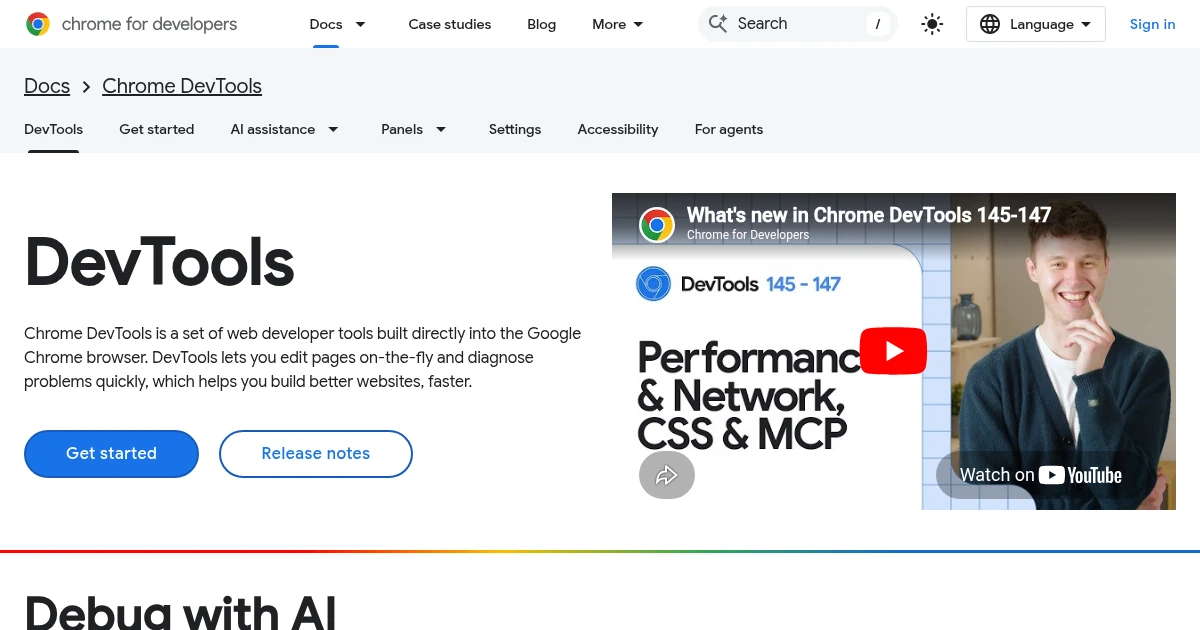
The fastest way to capture a full-page screenshot in Chrome needs no extension at all: open DevTools, run one command, and Chrome stitches the entire scrolling page into a single image. This guide covers that built-in method, the extension route if you want a one-click button, and how to automate full-page captures once you need them for more than one page at a time.
The built-in DevTools method (no extension)
Chrome ships a full-page capture inside Developer Tools. It is the method most "scrolling screenshot" guides eventually point you to, and it works on every desktop platform:
- Open the page you want to capture.
- Open DevTools: F12, or Ctrl+Shift+I on Windows and Linux, or Cmd+Option+I on Mac.
- Open the Command Menu: Ctrl+Shift+P on Windows and Linux, or Cmd+Shift+P on Mac.
- Type
screenshot, then select Capture full size screenshot.
Chrome scrolls the whole page, stitches it into one tall PNG, and downloads it to your default folder. This captures the entire document height, not just the part visible in the window, which is the difference between this and a normal screenshot.
If you only want the visible area, the same menu offers Capture screenshot, and Capture node screenshot grabs a single selected element from the Elements panel.
The extension route
If you would rather click a button than open DevTools each time, a full-page screenshot extension adds one to the toolbar. GoFullPage is the most widely used, and ScreenshotOne and similar tools offer browser extensions too. The trade-off: an extension can see the pages you capture, so for sensitive or internal pages the built-in DevTools method keeps everything local.
Save as PDF instead
If you need a document rather than a PNG, Chrome's print dialog does full-page export:
- Press Ctrl+P (Windows/Linux) or Cmd+P (Mac).
- Set the destination to Save as PDF.
- Click Save.
This captures the full page as vector text where possible, which is better than an image if the page is mostly type.
When the manual method stops scaling
Everything above is one page at a time, by hand. That is fine for a handful of captures. It falls apart the moment you need full-page screenshots:
- across dozens or hundreds of URLs (a sitemap audit, competitor research),
- on a schedule (visual monitoring, change detection),
- inside CI (visual regression tests on every deploy),
- or generated on demand (social preview images per page).
For any of those, you want an API call instead of a person and a keyboard. A screenshot API runs a real Chromium render on its side and returns a hosted image, so you script the capture instead of performing it.
Automating full-page captures
Here is the same full-page capture as a single request to Grabbit. Set full_page to true and you get the entire scrolling page back, exactly like the DevTools command:
curl https://api.grabbit.live/v1/grabs \
  -H "Authorization: Bearer sk_live_..." \
  -H "Content-Type: application/json" \
  -d '{
    "url": "https://example.com",
    "width": 1280,
    "full_page": true,
    "format": "webp"
  }'
The response includes a hosted image_url you can store or display directly:
{
  "id": "grb_01jx...",
  "status": "done",
  "image_url": "https://cdn.grabbit.live/grabs/grb_01jx....webp",
  "width": 1280,
  "format": "webp",
  "bytes": 47120,
  "execution_ms": 1240
}
To capture many pages, loop over your list of URLs and send one request each. Width accepts 320 to 1920, format is png, jpeg, or webp, and delay_ms (0 to 10000) waits for late-rendering content before the shot fires. If a page lazy-loads sections, delay_ms plays the same role as scrolling the page yourself in DevTools.
Which method to use
Reach for the DevTools Command Menu for a quick one-off capture: it is built in, local, and needs nothing installed. Reach for an extension if you want a permanent toolbar button and the pages are not sensitive. Reach for an API when capturing is a repeated or automated job and doing it by hand no longer makes sense.
For the cross-tool breakdown of full-page capture (including Firefox, Edge, and code approaches), see how to take a full-page screenshot. If you are already scripting captures in code, full-page screenshots in Puppeteer covers the same job in Node.
FAQ
- How do I take a screenshot of a full-page scroll in Chrome?
- Open Chrome DevTools with F12 (or Cmd+Option+I on Mac), open the Command Menu with Ctrl+Shift+P (Cmd+Shift+P on Mac), type screenshot, and select Capture full size screenshot. Chrome scrolls the entire page, stitches it into one image, and downloads it as a PNG. No extension is needed.
- How do I take a full-page screenshot in Chrome using F12?
- F12 opens DevTools. From there press Ctrl+Shift+P (Cmd+Shift+P on Mac) to open the Command Menu, type screenshot, and choose Capture full size screenshot. The whole scrolling page is captured, not just the visible viewport, and saved to your downloads folder.
- How do I take a full-page screenshot without an extension?
- Use the built-in DevTools Command Menu. Open DevTools (F12), run Capture full size screenshot from the command bar, and Chrome handles the full scrolling capture itself. Extensions like GoFullPage add a one-click button but are not required for the core feature.
- Why is my Chrome full-page screenshot cut off or blank?
- Chrome captures what has rendered. Pages that lazy-load content as you scroll, or that depend on JavaScript still running, can produce a short or blank capture. Scroll the full page first so every section renders, then run Capture full size screenshot. For reliable automated captures, a screenshot API can wait for a specific element before firing.
- How do I capture full-page screenshots for many pages at once?
- The manual DevTools method is one page at a time. To capture a full page across many URLs (for monitoring, testing, or OG images), call a screenshot API in a loop with full_page set to true. Each request returns a hosted image URL, so you never open a browser by hand.
Capture any website with one API call
Get a free test key and wire your first request in two minutes.
Written by
Grabbit Team
Screenshots as a service
The team behind Grabbit, the screenshot API for developers and AI agents. We write about web capture, rendering, and automating screenshots at scale.
Keep reading
How to Take a Full-Page Screenshot (Every Method That Works in 2026)
How to take a full-page screenshot on Chrome, Firefox, Edge, Windows, Mac, iPhone, and Android, plus how to capture full pages automatically with an API.
Jun 10, 2026 · 4 min read
Full-Page Screenshots in Puppeteer (and When an API Is Faster)
How to take screenshots in Puppeteer: full page, specific elements, and high quality. Plus the failure modes that make people switch to a hosted screenshot API.
Jun 12, 2026 · 5 min read
How to Screenshot a JavaScript-Heavy Page (Waiting for Content That Loads Late)
JS-heavy pages finish loading before they finish rendering, so naive captures come back half-built. Here is how to screenshot a page server-side and wait for late content to settle.
Oct 13, 2026 · 7 min read