Capture guides
How to Take a Full-Page Screenshot (Every Method That Works in 2026)
June 10, 2026 · 4 min read · Grabbit Team
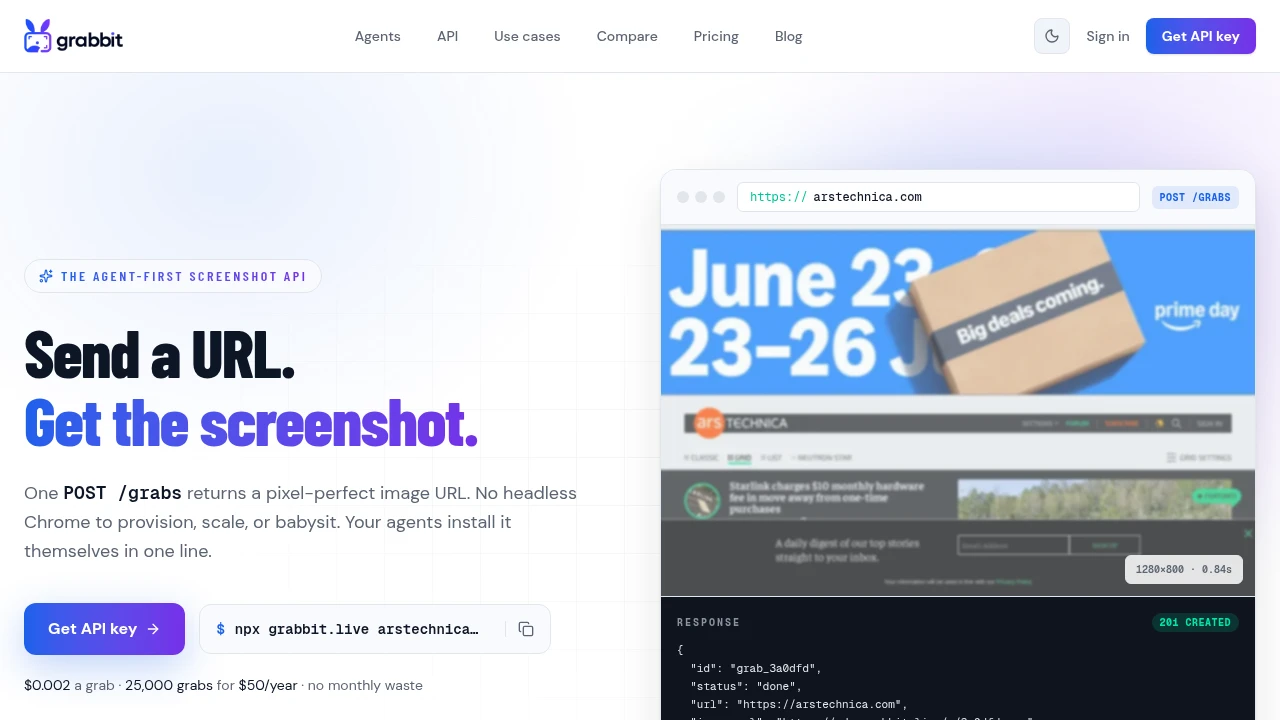
A regular screenshot stops at the fold: it captures only what is currently on your screen. A full-page screenshot captures the entire document, from the top of the page to the bottom, no matter how far it scrolls. Here is how to do it on every platform, plus how to capture full pages automatically when you need more than one.
The header image above was captured from grabbit.live with the Grabbit API.
The quickest answer per platform
| Platform | Fastest method |
|---|---|
| Chrome | DevTools Command Menu, "Capture full size screenshot" |
| Firefox | Right-click, "Take Screenshot", "Save full page" |
| Edge | Web capture (Ctrl+Shift+S), "Capture full page" |
| Windows | Use the browser methods above (Snipping Tool is viewport only) |
| Mac | Use the browser methods above (no native scroll capture) |
| iPhone | Screenshot, then the "Full Page" tab, save as PDF |
| Android | Screenshot, then "Capture more" |
Chrome (built in, no extension)
Chrome can capture a full page without any add-on:
- Open the page and press F12 to open DevTools.
- Open the Command Menu with Ctrl+Shift+P (Cmd+Shift+P on Mac).
- Type
screenshotand choose Capture full size screenshot.
Chrome scrolls the page for you and saves one tall image to your downloads. This is the most reliable manual method on any operating system, since it works the same on Windows, Mac, and Linux.
Chrome and Edge with an extension
If you take full-page shots often, a one-click extension is faster. GoFullPage and similar extensions add a toolbar button that scrolls, stitches, and exports the page as PNG or PDF. Useful for occasional manual captures, though every extension you install gets access to the pages you visit, so weigh that against convenience.
Firefox (built in)
Firefox has a native full-page tool:
- Right-click anywhere on the page.
- Choose Take Screenshot.
- Click Save full page.
Edge (built in)
Microsoft Edge ships Web Capture:
- Press Ctrl+Shift+S, or open the menu and choose Web capture.
- Choose Capture full page.
- Annotate if you want, then save.
Windows and the Snipping Tool
A common question: can the Snipping Tool take a scrolling screenshot? No. The Windows Snipping Tool and PrtScn only capture the visible area. For a full page on Windows, use Chrome's DevTools capture, Edge's Web Capture, or an extension.
Mac
macOS shortcuts (Cmd+Shift+3 for the whole screen, Cmd+Shift+4 for a selection, Cmd+Shift+5 for the toolbar) all capture only what is visible. There is no native scrolling-screenshot tool, so for a full page use your browser's built-in capture as described above.
iPhone and Android
- iPhone: take a screenshot (side button plus volume up), tap the preview thumbnail, then switch to the Full Page tab at the top. Save the entire page as a PDF.
- Android: take a screenshot, then tap Capture more (the exact label varies by manufacturer) to extend the capture down the page.
On mobile this feature usually goes by "scrolling screenshot" — how to take a scrolling screenshot on every device covers each platform's version of it in more detail.
Capturing full pages automatically with an API
Manual methods are fine for one page. When you need to capture full pages on a schedule, across many URLs, or inside an app, an API does it with a single request. Set full_page to true and the capture spans the entire document height:
curl https://api.grabbit.live/v1/grabs \
  -H "Authorization: Bearer sk_live_..." \
  -H "Content-Type: application/json" \
  -d '{ "url": "https://example.com", "full_page": true, "format": "webp" }'
The response returns a hosted image_url for the full page. Add delay_ms (up to 10000) to wait for lazy-loaded content, width (320 to 1920) to set the layout, or a CSS selector to clip to one element. For the full walkthrough, see the full-page screenshot guide, and for every parameter see the screenshot API. If you only need a normal capture, our guide to screenshotting any website covers the basics.
FAQ
- How do you take a full-page scrolling screenshot?
- A scrolling screenshot captures content below the fold by scrolling the page and stitching the frames into one tall image. In Chrome, use the DevTools command 'Capture full size screenshot'. On a phone, use the Full Page tab (iPhone) or Capture more (Android). To do it automatically, call a screenshot API with full_page set to true.
- How can I take a scrolling screenshot on Chrome?
- Open DevTools (F12), open the Command Menu (Ctrl+Shift+P or Cmd+Shift+P), type 'screenshot', and choose 'Capture full size screenshot'. Chrome saves the entire page, no extension required.
- Can the Snipping Tool take a scrolling screenshot?
- No. The Windows Snipping Tool only captures the visible area, not content below the fold. For a full page on Windows, use Chrome's DevTools full-size capture, a browser extension, or a screenshot API.
- How do I take a full-page screenshot on a Mac?
- macOS shortcuts (Cmd+Shift+3 and Cmd+Shift+4) capture only the visible screen. For a true full-page capture, use your browser: Chrome DevTools 'Capture full size screenshot' or Firefox's 'Save full page' option.
- How do I make a full-page screenshot on iPhone?
- Take a normal screenshot, tap the preview, then switch to the 'Full Page' tab at the top. You can save the entire scrollable page as a PDF.
Capture any website with one API call
Get a free test key and wire your first request in two minutes.
Written by
Grabbit Team
Screenshots as a service
The team behind Grabbit, the screenshot API for developers and AI agents. We write about web capture, rendering, and automating screenshots at scale.
Keep reading
How to Screenshot a JavaScript-Heavy Page (Waiting for Content That Loads Late)
JS-heavy pages finish loading before they finish rendering, so naive captures come back half-built. Here is how to screenshot a page server-side and wait for late content to settle.
Oct 13, 2026 · 7 min read
html2canvas Alternatives: When to Reach for a Screenshot API Instead
html2canvas re-implements the browser's renderer in JavaScript, so clip-path, filters, cross-origin images, iframes, and web fonts break. Here are the real alternatives and when each one fits.
Oct 6, 2026 · 6 min read
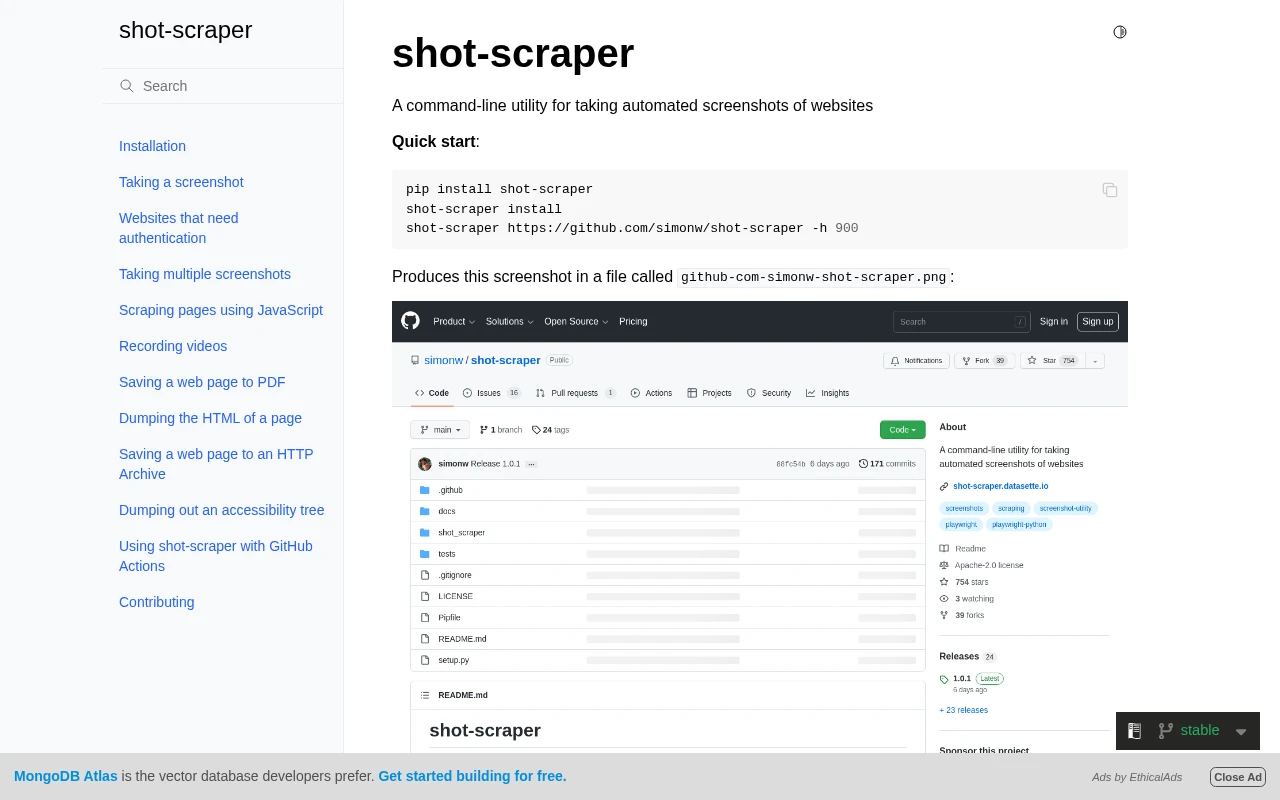
shot-scraper: Automated Documentation Screenshots (and When an API Fits Better)
shot-scraper is a Playwright-based CLI for keeping documentation screenshots up to date. How it works, how to automate it in CI, and when a hosted screenshot API is the simpler fit.
Oct 5, 2026 · 6 min read