Capture guides
How to Save a Webpage as an Image Programmatically (URL to PNG or JPG)
July 10, 2026 · 5 min read · Grabbit Team
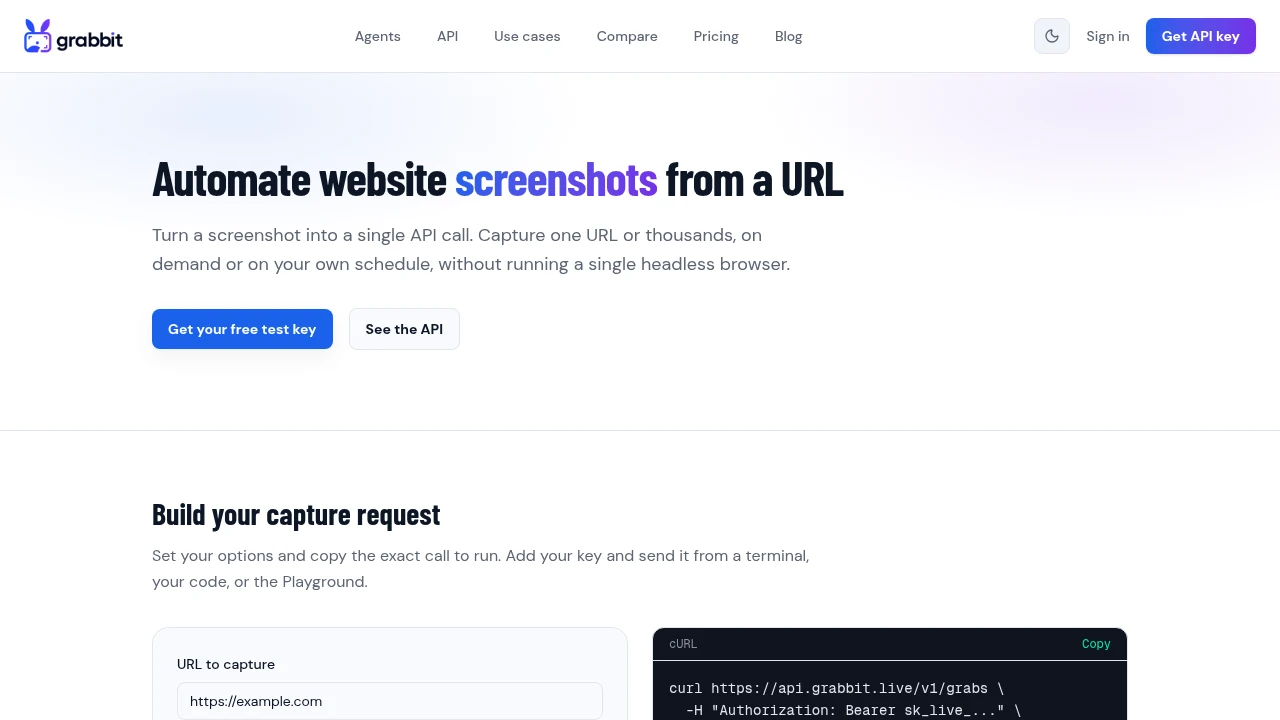
To save a webpage as an image you have two real options: capture it by hand in your browser, or send the URL to a screenshot API and get a hosted image back. The manual route is fine for a single page you will look at once. For anything you need to repeat, store, or run from code, the API route saves the page as an image in one request and hands you a URL you can serve directly.
The fastest programmatic way
One POST turns a URL into a hosted image. Choose the format with format and capture the full scrollable page with full_page:
curl https://api.grabbit.live/v1/grabs \
  -H "Authorization: Bearer sk_live_..." \
  -H "Content-Type: application/json" \
  -d '{
    "url": "https://example.com",
    "full_page": true,
    "format": "png"
  }'
The response includes an image_url you can store in your database and serve to users:
{
  "id": "grb_01jx...",
  "status": "done",
  "target_url": "https://example.com",
  "image_url": "https://grabbit.live/g/grb_01jx....png",
  "format": "png"
}
That is the whole job. No headless Chrome to install, no browser process to keep alive, no scrolling and stitching. The render happens in the cloud and you get back an image you can save.
Choosing a format: PNG, JPG, or WebP
format accepts png, jpeg, or webp. The right choice depends on what you are saving:
- PNG is lossless with a transparent-background option. Reach for it when text edges must stay crisp or you are keeping a pixel-exact baseline (for example, visual regression captures).
- JPG (
"format": "jpeg") produces the smallest file for long, photographic, or full-page captures. It is the practical default when you are storing many images and file size matters more than a transparent background. - WebP gives you smaller files than PNG at similar quality and is well supported across modern browsers. It is a strong default for images you will serve on the web.
If you only need the visible viewport rather than the entire scrollable page, drop full_page and set an explicit width and height:
{
  "url": "https://example.com",
  "width": 1280,
  "height": 720,
  "format": "webp"
}
width accepts 320 to 1920 and height accepts 240 to 1080. When full_page is true the height is measured automatically from the rendered page, so you do not set it yourself.
Handling pages that load content late
Single-page apps and pages with lazy-loaded images often need a moment after load before everything is on screen. Add delay_ms to wait before the capture fires:
{
  "url": "https://example.com/dashboard",
  "full_page": true,
  "delay_ms": 2000,
  "format": "png"
}
delay_ms accepts 0 to 10000 milliseconds. Because a real headless browser executes the page's JavaScript, dynamically rendered content appears in the saved image, which is the main thing client-side tools like html2canvas cannot do.
The manual browser methods (and their limits)
You do not always need code. Every major browser can save a page as an image on its own:
- Chrome and Edge: open DevTools (F12), press Ctrl+Shift+P, type "screenshot", and run Capture full size screenshot. This saves the entire scrollable page as a PNG with no extension.
- Firefox: right-click the page, choose Take Screenshot, then Save full page.
- iPhone and Android: take a normal screenshot, then use the "Full page" option in the markup view (iOS) or your browser's built-in capture.
These are perfect for a one-off. They fall down the moment you need to do it more than once: they cannot run in CI, they cannot capture a list of URLs, and they leave you with a file on one machine rather than a hosted image your app can serve. That is exactly the gap the API fills.
When to reach for the API instead
Pick the programmatic route when any of these are true:
- You need to save many pages, or the same page on a schedule.
- The capture has to run server-side or in CI, where there is no browser window to click.
- You want the result as a hosted URL you can store and serve, not a download in a folder.
- You are rendering JavaScript-heavy pages and manual tools miss the dynamic content.
Grabbit is a screenshots-as-a-service API built for exactly this: send a URL, get back a hosted image. Live captures are a flat $0.002 per grab. Annual-plan credits expire at term end; if you cancel, you keep them until then. Separately purchased top-up credits do not expire while your account remains active. Neither resets monthly. Synchronous test requests return a free placeholder for wiring, not a live render. See the automated screenshots guide for the full workflow, or the sibling walkthroughs on screenshotting a website from a URL and capturing an entire web page.
A note on rendering HTML you wrote
"Save a webpage as an image" starts from a live URL. If what you actually have is your own HTML (an email template, a receipt, a generated card), the pattern is the same with one extra step: host that HTML at a URL first, then capture the URL. Grabbit captures URLs rather than raw HTML strings, so once your markup is reachable at a link, saving it as an image is the same single request shown above. The webpage to image post covers the multi-format version of this in more detail.
FAQ
- How do I save an entire webpage as an image?
- For a one-off, use the browser: in Chrome open DevTools (F12), press Ctrl+Shift+P, and run 'Capture full size screenshot' to save the whole scrollable page as a PNG. To do it from code or on a schedule, POST the URL to a screenshot API with full_page set to true and store the hosted image it returns. The API runs a real headless browser in the cloud, so it captures the full height without any extension or manual scrolling.
- How do I convert a website into an image?
- Send the site's URL to a screenshot API and choose an output format. One HTTP POST with the url and a format of png, jpeg, or webp returns a rendered image of the page. Because the service runs headless Chromium, JavaScript-rendered content and lazy-loaded sections appear exactly as they would in a browser. Add a delay_ms value to wait for late-loading content before the capture fires.
- Can I save a webpage as an image without an extension?
- Yes. Chrome and Edge both have a built-in full-page capture in DevTools that needs no extension, and any screenshot API saves a webpage as an image with a single request. The API path is the better fit when you need to save many pages, run captures in CI, or store the image somewhere your app can serve it.
- How do I save a webpage as a JPG instead of a PNG?
- Set the output format to jpeg. In a screenshot API you pass "format": "jpeg" in the request body. JPG produces a smaller file than PNG for long, photographic, or full-page captures, which is why it is a good default when file size matters more than a transparent background or pixel-exact text edges.
- How is saving a webpage as an image different from converting HTML to an image?
- Saving a webpage as an image starts from a live URL: the service loads the page in a browser and captures the rendered result. Converting raw HTML to an image starts from a string of markup you supply. If you want to render your own HTML, host it at a URL first and then capture that URL. Grabbit captures URLs, not raw HTML strings, so the pattern is the same for both jobs.
Capture any website with one API call
Get a free test key and wire your first request in two minutes.
Written by
Grabbit Team
Screenshots as a service
The team behind Grabbit, the screenshot API for developers and AI agents. We write about web capture, rendering, and automating screenshots at scale.
Keep reading
How to Screenshot a Website from a URL (No Browser Needed)
Skip the headless browser setup. Learn the three ways to capture a screenshot from a URL, and when a screenshot API beats Puppeteer or Playwright for production workloads.
Jun 15, 2026 · 7 min read
How to Screenshot an Entire Web Page on Any Device
A practical guide to capturing full-page screenshots on Windows, Mac, iPhone, Android, and in code. One API call handles any device or environment.
Jun 17, 2026 · 6 min read
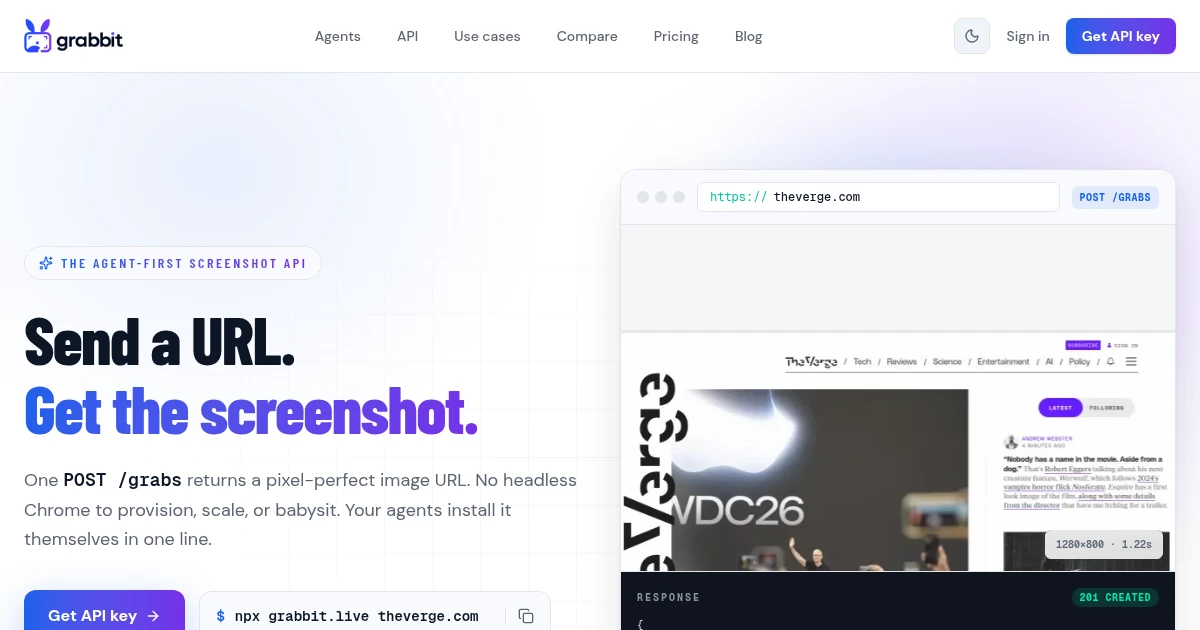
How to Convert a Webpage to an Image (URL to JPG, PNG, or WebP)
Turn any URL into a hosted JPG, PNG, or WebP image with one API call. No headless Chrome to install, no local converter, and the format and full-page options developers actually need.
Jul 1, 2026 · 6 min read