OG images
Open Graph Debugger: How to Fix a Broken Link Preview
July 8, 2026 · 6 min read · Grabbit Team
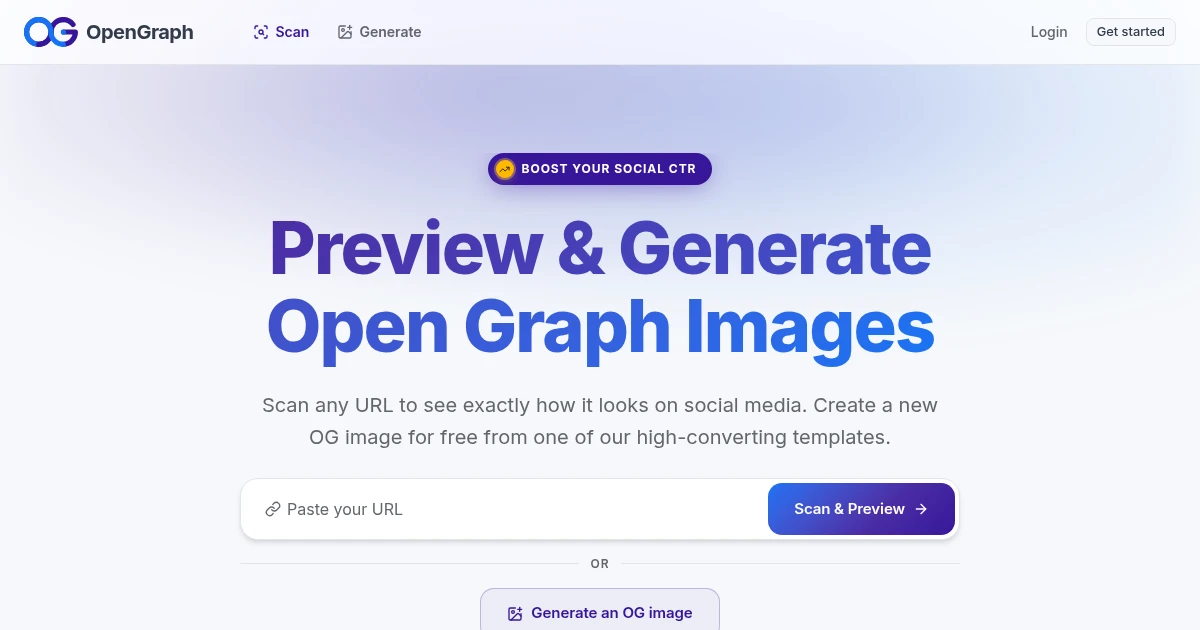
Your link preview is broken: the wrong image, a missing title, or a bare URL with no card at all. An Open Graph debugger tells you why. It fetches your page the way a social crawler does, shows you the exact tags it found, and lets you force a fresh scrape when a stale preview is cached. This guide walks through reading the debuggers, clearing the cache, and generating an og:image that actually renders.
The short answer
Paste your page URL into an Open Graph debugger and read what the crawler sees:
- Facebook Sharing Debugger shows the scraped tags and warnings, with a Scrape Again button to clear a stale cache.
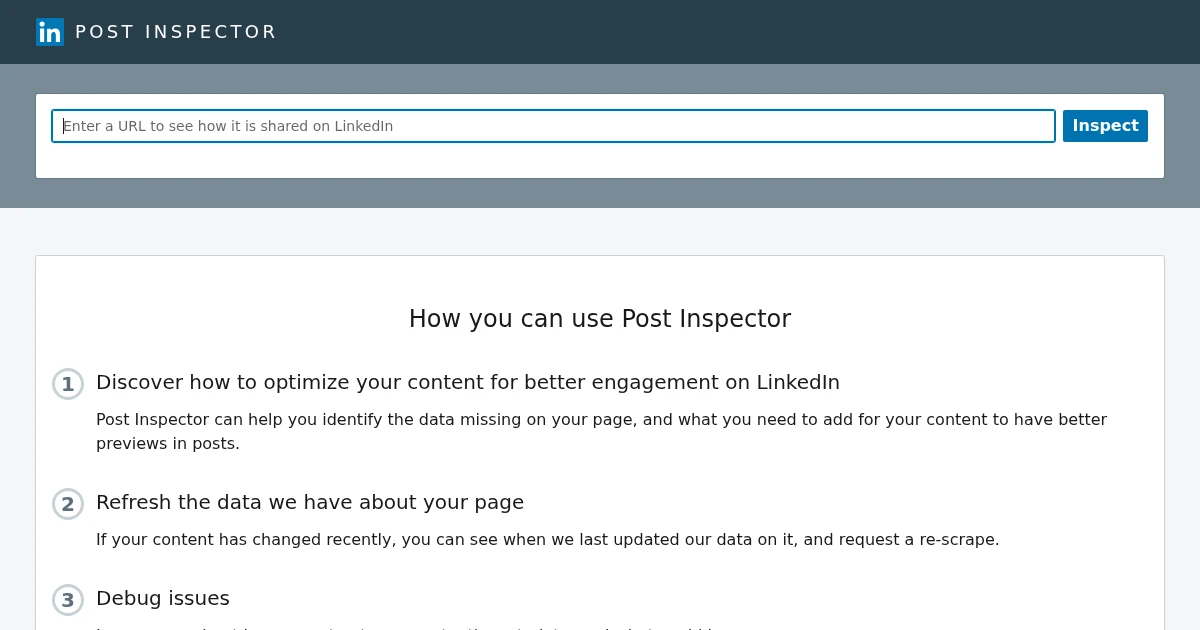
- LinkedIn Post Inspector re-fetches on every check, so it doubles as a cache buster.
- opengraph.xyz and OpenGraph.to scan any URL and preview the card across Facebook, X, and LinkedIn at once.
The debugger will tell you which tag is missing or wrong. Fix it, redeploy, then re-scrape. Most broken previews are one of three problems, covered below.
The three reasons a link preview breaks
Almost every broken preview comes down to a missing tag, an unreachable image, or a cached result. A debugger points you at which one.
1. A missing or malformed tag. The card needs og:title, og:description, og:image, and og:url at minimum. If the debugger shows a blank field, that tag is absent or the crawler could not read it. A common cause: the tags are injected by client-side JavaScript, and crawlers run little to no JS, so they see an empty <head>. Server-render your meta tags.
2. An og:image the crawler cannot fetch. The image URL must be absolute (starting with https://), publicly reachable, and not behind an auth wall or a redirect. A relative path like /og.png will not resolve. If the debugger reports the image but the card shows nothing, open the image URL in an incognito window: if it does not load for you, it will not load for the crawler.
3. A stale cache. This is the most confusing one, because your tags are correct and the preview is still wrong. The platform cached what it scraped earlier and is serving that. The fix is not to change anything: it is to force a re-scrape (next section).
How to force a re-scrape and clear a stale preview
When you fixed a tag but the old preview will not budge, the platform is showing a cached scrape. Clear it at the source:
- Facebook / Instagram / WhatsApp (they share Facebook's crawler): open the Sharing Debugger, enter your URL, and click Scrape Again. The preview updates to the freshly scraped tags.
- LinkedIn: the Post Inspector re-fetches every time you submit a URL, so a single check both debugs and busts the cache.
- X (Twitter): X reads
og:imageautomatically, but the large card only renders whentwitter:cardis set tosummary_large_image. There is no public "scrape again" button, so the reliable test is to paste the URL into a draft post and look at the attached card before sending.
Re-scraping usually clears within minutes. If the debugger still shows the old image after a scrape, double-check that you actually deployed the new tag and that no CDN is caching the HTML response.
How to debug an Open Graph image on localhost
This is the case the online debuggers cannot handle: a social crawler runs on the platform's servers, so it has no route to http://localhost:3000. You have two options.
Option 1: expose localhost with a tunnel. Run a tunnel like ngrok to get a public URL that points at your local server, then paste that URL into any debugger above. You get the real unfurl preview while the code is still local.
Option 2: capture the OG template directly. If your og:image is generated from an HTML template (the scalable pattern, where one /og route renders the title and branding per page), you do not need a social crawler to see the image. You need to see what the template renders at 1200 by 630. Point a screenshot API at the template URL and inspect the returned image:
curl https://api.grabbit.live/v1/grabs \
  -H "Authorization: Bearer sk_test_..." \
  -H "Content-Type: application/json" \
  -d '{
    "url": "https://your-tunnel.ngrok.app/og?title=My+Post+Title&category=Guides",
    "width": 1200,
    "height": 630,
    "format": "png"
  }'
An sk_test_ key makes this synchronous request return a deterministic placeholder at no charge. Use it to verify authentication, request parameters, and response handling, but not the template's pixels. Switch to an sk_live_ key with available credits to inspect the actual 1200 by 630 render. A live request returns HTTP 402 when no credits remain.
A pre-share checklist
Before you share a link, run it through a debugger and confirm:
og:title,og:description,og:image, andog:urlare all present in the server-rendered HTML.og:imageis an absolute URL, publicly reachable, at least 600 by 315 and ideally 1200 by 630 pixels.og:image:widthandog:image:heightare set so the platform reserves the right space.twitter:cardissummary_large_imageif you want the large card on X.- No auth wall, redirect, or client-side JS stands between the crawler and your tags.
If all five pass and the debugger still shows the wrong card, it is a cache: force a re-scrape.
Why debugging gets harder with dynamic OG images
Checking one hand-made image once is easy. But the moment you generate images dynamically (one per blog post, one per product, one per user) you cannot manually eyeball every output, and a debugger only tells you about the one URL you paste. That is where capturing the template with a screenshot API pays off: the same call that renders your OG template lets you inspect it, so you catch a clipped title or an overflowing string across every variant before any of them ship.
This is the workflow Grabbit's screenshot API is built for. Render your OG template, capture it at 1200 by 630, store the returned image_url, and point your og:image tag at it. Start with a free test key to prove the request wiring, then use a live key to inspect the template and make production captures.
Wrapping up
To fix a broken link preview: run the URL through a debugger to see what the crawler scraped, fix any missing or unreachable tag, and force a re-scrape to clear a stale cache. For localhost, tunnel the page out or capture your OG template directly. For a plain-language look at the tags themselves, read what an OG image is and why links break. For a preview-focused walkthrough, see how to test and preview your OG image before publishing, and for the LinkedIn-specific fix, how to fix LinkedIn link previews.
FAQ
- What is an Open Graph debugger?
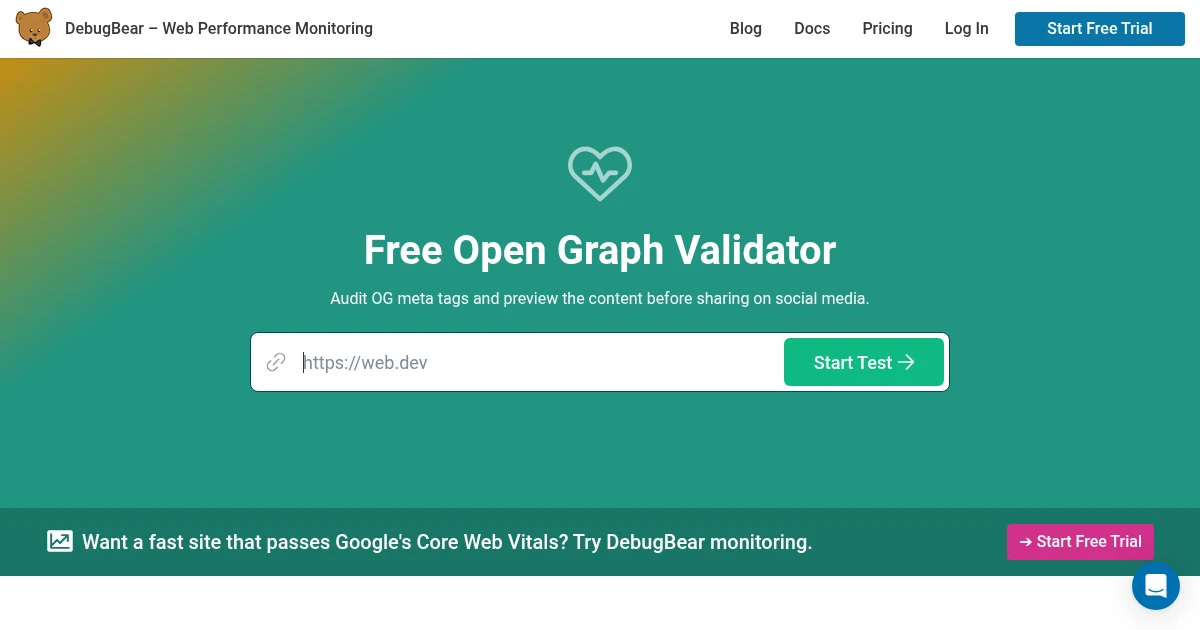
- An Open Graph debugger is a tool that fetches your page the way a social crawler does, parses the og: meta tags it finds, and shows you the link preview those tags produce. It flags missing or malformed tags and, on the platform-native debuggers, lets you force a fresh scrape to clear a cached preview. Facebook's Sharing Debugger, LinkedIn's Post Inspector, opengraph.xyz, and DebugBear's OG checker are the common ones.
- How do I use the Facebook Open Graph debugger?
- Open the Sharing Debugger at developers.facebook.com/tools/debug, paste your page URL, and read the 'Link Preview' and the raw og: tags it scraped. If the preview is stale after you changed a tag, click 'Scrape Again' to force Facebook to re-fetch the page. The debugger also lists warnings for any required tag that is missing or the wrong type.
- Why is my link preview not updating?
- Social platforms cache the result of scraping your page, sometimes for days, so a link you already shared keeps showing the old preview. Force a re-scrape through the platform's own debugger: Facebook's Sharing Debugger has a 'Scrape Again' button and LinkedIn's Post Inspector re-fetches on every check. The cache usually clears within minutes once the crawler re-reads the page.
- How do I debug an Open Graph image on localhost?
- Platform debuggers run on the platform's servers, so they cannot reach http://localhost. Either expose your local server with a tunnel like ngrok and debug the public URL, or capture your OG template page directly with a screenshot API so you can inspect the rendered 1200 by 630 image without deploying.
- What Open Graph tags does a debugger check for?
- At minimum og:title, og:description, og:image, and og:url, plus og:type. For a large card on X you also need twitter:card set to summary_large_image. A debugger flags any of these that are missing, and it checks that og:image is an absolute URL that is publicly reachable and at least 600 by 315 pixels.
Capture any website with one API call
Get a free test key and wire your first request in two minutes.
Written by
Grabbit Team
Screenshots as a service
The team behind Grabbit, the screenshot API for developers and AI agents. We write about web capture, rendering, and automating screenshots at scale.
Keep reading
How to Test and Preview Your OG Image Before Publishing
Preview your OG image before you publish using platform debuggers and a screenshot API. Test how a link unfurls on X, Facebook, LinkedIn, Slack, and from localhost.
Jun 14, 2026 · 16 min read
What Is an OG Image? Why Your Shared Links Look Broken
An OG image is the preview image that appears when a link is shared on social media. Learn what it is, why it breaks, and how to automate one per page.
Jun 13, 2026 · 5 min read
How to Fix LinkedIn Link Previews (Open Graph for LinkedIn)
Why your LinkedIn link shows up bare or with the wrong image, and how to fix it: add the right Open Graph tags, point og:image at a real 1200x627 render, and force LinkedIn to re-scrape with Post Inspector.
Jun 24, 2026 · 7 min read