Dev frameworks
How to Screenshot a Website in Python (3 Approaches That Work)
June 17, 2026 · 5 min read · Grabbit Team
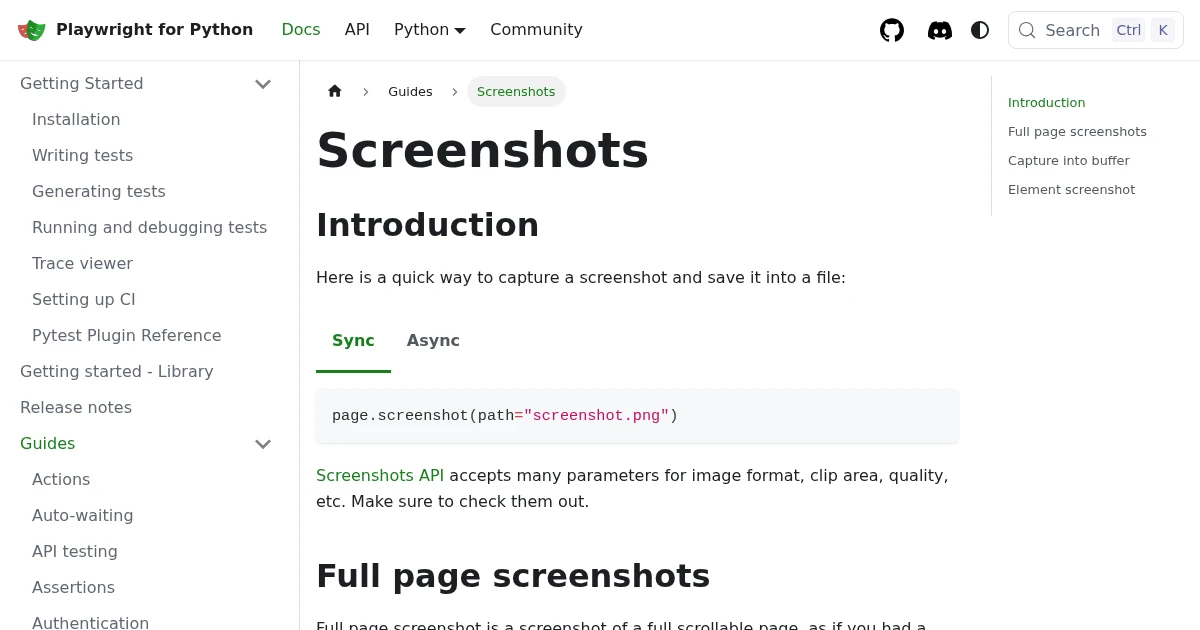
There are three honest ways to screenshot a website in Python: drive Playwright, drive Selenium, or skip the browser and call an API. The code differs, but the hard parts are the same in all three: waiting for the page to be ready and capturing the full scrolling page, not just the viewport. This guide shows each approach with working code and the gotcha that bites people.
Approach 1: Playwright (the best default)
Playwright for Python launches a browser, and a full-page screenshot is one parameter:
from playwright.sync_api import sync_playwright

with sync_playwright() as p:
    browser = p.chromium.launch()
    page = browser.new_page()
    page.goto('https://example.com')
    page.screenshot(path='example.png', full_page=True)
    browser.close()
Install it with pip install playwright then playwright install chromium. The reason to reach for Playwright first: it auto-waits for the page to reach a stable state before the screenshot fires, so you write less timing code, and full_page=True handles the entire scrolling page in one line. It also drives Chromium, Firefox, and WebKit with the same API. See screenshots in Playwright for elements, CI, and the full-page edge cases.
Approach 2: Selenium (when you already use it)
Selenium captures the current window. In Python that is one method:
from selenium import webdriver

driver = webdriver.Chrome()
driver.get('https://example.com')
driver.save_screenshot('example.png')
driver.quit()
The catch: save_screenshot captures only the visible viewport, and Selenium has no native full-page flag. For the whole page you drive the Chrome DevTools Protocol:
import base64

result = driver.execute_cdp_cmd('Page.captureScreenshot', {
    'captureBeyondViewport': True,
    'fromSurface': True,
})
with open('full.png', 'wb') as f:
    f.write(base64.b64decode(result['data']))
This is more code and more browser-specific than Playwright, which is why Selenium is the right pick mainly when you already run a Selenium suite. The full breakdown is in screenshots in Selenium.
The gotcha both share: waiting
The most common bug in either library is capturing before the page is ready. Do not use a fixed time.sleep; wait on something real. In Selenium:
from selenium.webdriver.support.ui import WebDriverWait
from selenium.webdriver.support import expected_conditions as EC
from selenium.webdriver.common.by import By

WebDriverWait(driver, 10).until(
    EC.presence_of_element_located((By.ID, 'main-content'))
)
Playwright auto-waits for most cases, but for a specific element use page.wait_for_selector('#main-content') before capturing. For web fonts, wait on document.fonts.ready so the image does not show a fallback font.
Approach 3: Skip the browser, call an API
Both libraries above mean you install and operate a browser in Python: drivers, system libraries, memory management, and full-page workarounds. If screenshots are a production feature rather than a step in an existing script, a screenshot API removes all of that. You send one HTTP request:
curl https://grabbit.live/api/v1/grabs \
  -H "Authorization: Bearer sk_live_..." \
  -H "Content-Type: application/json" \
  -d '{
    "url": "https://example.com",
    "width": 1280,
    "full_page": true,
    "format": "webp"
  }'
The same call from Python with requests:
import requests

res = requests.post(
    'https://grabbit.live/api/v1/grabs',
    headers={'Authorization': 'Bearer sk_live_...'},
    json={'url': 'https://example.com', 'width': 1280, 'full_page': True, 'format': 'webp'},
)
image_url = res.json()['image_url']
The response gives you a hosted image URL:
{
  "id": "acad5d61-fef6-4aff-bb60-ea2b884254c9",
  "status": "done",
  "image_url": "https://cdn.grabbit.live/g/acad5d61-fef6-4aff-bb60-ea2b884254c9.webp",
  "width": 1280,
  "format": "webp",
  "bytes": 48210,
  "execution_ms": 1180
}
The browser patterns map onto request parameters: viewport is width (320 to 1920) and height (240 to 1080), full page is full_page, the element pattern is a selector field, and the explicit wait becomes delay_ms (0 to 10000). format is png, jpeg, or webp.
Capturing a JavaScript-heavy or lazy-loaded page
The single-page apps and lazy-loaded feeds that break naive captures are the same in Python as anywhere else: the screenshot fires before the async content settles, and you get a half-rendered page. All three approaches run a real browser that executes the page's JavaScript, so the content will render. The trick is telling the capture to wait for it.
- Playwright: wait on a real element with
page.wait_for_selector('#feed-item'), or on network withpage.goto(url, wait_until='networkidle'). Avoid a fixedtime.sleep. - Selenium: use
WebDriverWaiton apresence_of_element_locatedcondition (shown above) for the element that appears after the data loads. - The API: set
delay_msto give the page time to settle, and pointselectorat an element that only exists once the content has hydrated. The render runs a real Chromium, so client-side frameworks like React and Vue paint before the capture.
The rule across all three: wait on something that proves the content is there, not on a guessed number of milliseconds. A fixed sleep is either too short (blank capture) or too long (slow pipeline).
Which to use
- New code, want the least friction: Playwright. Fast setup, auto-waiting, one-line full page.
- Already running Selenium: keep it, add the CDP call for full page.
- Screenshots are a production feature, not a script: an API, so you do not operate a browser in Python at all.
For the framework deep dives, see screenshots in Playwright and screenshots in Selenium. If you are weighing hosted options, the honest comparison of screenshot APIs covers the trade-offs without the marketing.
FAQ
- How do I take a screenshot of a website in Python?
- Drive a headless browser. The two common libraries are Playwright (await page.screenshot(path='out.png')) and Selenium (driver.save_screenshot('out.png')). Both launch a real browser, load the URL, and capture the page. If you do not want to run a browser, call a hosted screenshot API with the URL and get an image back over HTTP.
- How do I take a full-page screenshot in Python?
- In Playwright, pass full_page=True to page.screenshot(); it captures the entire scrolling page in one call. Selenium has no native full-page flag, so you drive the Chrome DevTools Protocol (Page.captureScreenshot with captureBeyondViewport) or use Firefox's get_full_page_screenshot_as_file. A screenshot API exposes a single full_page parameter instead.
- How do I screenshot a website in Python without Selenium?
- Use Playwright for Python, which is generally faster to set up and has built-in auto-waiting and a one-line full_page option. If you want no browser at all, call a hosted screenshot API: you send the URL over HTTP and receive a hosted image URL, with no driver or browser to install.
- Why is my Python screenshot blank or cut off?
- The two usual causes are capturing before the page finished rendering and capturing only the viewport. Wait for a real element (Playwright's auto-wait, or WebDriverWait in Selenium) before you capture, and use a full-page method for content below the fold. Web fonts that load late can also cause fallback fonts in the image.
- Which Python library is best for screenshots?
- Playwright is the best default for new code: fast setup, auto-waiting, and a one-line full-page capture across Chromium, Firefox, and WebKit. Selenium fits when you already run a Selenium suite. A hosted API fits when screenshots are a production feature and you would rather not operate a browser fleet in Python.
Capture any website with one API call
Get a free test key and capture your first screenshot in two minutes.
Written by
Grabbit Team
Screenshots as a service
The team behind Grabbit, the screenshot API for developers and AI agents. We write about web capture, rendering, and automating screenshots at scale.
Keep reading
How to Take Screenshots in Playwright (Full Page, Elements, CI)
Everything you need to take screenshots in Playwright: the viewport default, full-page captures, element-level shots, and wiring it all into CI. Plus when to reach for an API instead.
Jun 14, 2026 · 10 min read
How to Take Screenshots in Selenium (Full Page and Element)
How to capture screenshots in Selenium WebDriver: the viewport default, the full-page workarounds Selenium does not handle natively, single elements, and when a screenshot API is less work.
Jun 16, 2026 · 5 min read
The Best Screenshot APIs in 2026 (An Honest Comparison)
Comparing the top screenshot APIs on billing model, per-grab cost, features, and agent support so you can pick the right one for your project.
Jun 11, 2026 · 6 min read