Dev frameworks
How to Take Screenshots in Playwright (Full Page, Elements, CI)
June 14, 2026 · 10 min read · Grabbit Team
page.screenshot() does the job in two lines for a local capture or a test assertion. The friction arrives later: full-page shots that get clipped by sticky headers, Chromium installation issues in CI, and the long tail of keeping a browser fleet running in production. This guide covers the screenshot methods that work, the ones with hidden edge cases, and the point where offloading to an API makes more sense.
The basic Playwright screenshot
Launch a browser, open a page, capture:
import { chromium } from 'playwright';

const browser = await chromium.launch();
const page = await browser.newPage();

await page.goto('https://example.com', { waitUntil: 'networkidle' });
await page.screenshot({ path: 'example.png' });

await browser.close();
The waitUntil: 'networkidle' option is worth stating explicitly. The default load event fires as soon as the HTML and blocking scripts are done, but client-rendered content, web fonts, and lazy-loaded images often arrive later. networkidle waits until there are no network connections open for at least 500ms, which is a much better proxy for "the page actually looks right."
When the screenshot times out
A capture that fails with Timeout 30000ms exceeded is one of the most common Playwright screenshot errors, and it is almost never the screenshot itself that is slow. page.screenshot() inherits the timeout from waitUntil, so if you used networkidle on a page that keeps a connection open (a WebSocket, an analytics beacon, a long-poll), the page never reaches idle and the whole call times out waiting.
Three fixes, in order of preference:
- Drop
networkidlefor a real settle signal. Wait for the element you actually care about instead of the whole network going quiet:await page.locator('#main').waitFor()before the capture. This is more reliable thannetworkidleon any page with background traffic. - Set an explicit screenshot timeout. Pass
timeoutdirectly so a slow capture fails fast instead of hanging on the default 30 seconds:await page.screenshot({ path: 'page.png', timeout: 10000 }). Atimeoutof0disables it entirely, which is occasionally what you want for a very tall full-page shot. - Give animations time to finish. Playwright waits for the page to be stable, but CSS animations and web fonts can keep repainting.
stylePath(covered below) or a short explicit wait settles them before the capture fires.
Full-page screenshots
By default page.screenshot() captures the viewport only. To capture the full scrolling page, set fullPage: true:
await page.screenshot({ path: 'full.png', fullPage: true });
Playwright expands the viewport to the document's full scroll height before capturing. This works reliably on most static pages.
Two things break it:
- Sticky and fixed-position elements. A header with
position: fixedrenders in its normal viewport position for every "slice" Playwright captures, so it can appear repeated or floating over content in the final stitched image. There is no clean built-in workaround short of hiding the element with apage.addStyleTagbefore capturing. - Lazy-loaded content. If a page only renders sections when they scroll into view,
fullPage: truecan come back short. Scroll the page yourself before capturing to trigger those renders:
await page.evaluate(async () => {
  await new Promise<void>((resolve) => {
    let scrolled = 0;
    const step = 500;
    const timer = setInterval(() => {
      window.scrollBy(0, step);
      scrolled += step;
      if (scrolled >= document.body.scrollHeight) {
        clearInterval(timer);
        window.scrollTo(0, 0);
        resolve();
      }
    }, 100);
  });
});

await page.screenshot({ path: 'full.png', fullPage: true });
Screenshotting a specific element
Playwright's locator API makes element-level captures cleaner than Puppeteer's ElementHandle approach. Call .screenshot() on any locator and Playwright crops to that element's bounding box:
// Capture a single component by CSS selector
await page.locator('#pricing-card').screenshot({ path: 'card.png' });

// Or by role
await page.getByRole('dialog').screenshot({ path: 'modal.png' });
If the element is below the fold, Playwright scrolls it into view before capturing. If the selector matches nothing, the call throws, so wrap it in a waitFor when the element might not be immediately present:
const card = page.locator('#pricing-card');
await card.waitFor({ state: 'visible' });
await card.screenshot({ path: 'card.png' });
Format and quality options
Playwright defaults to PNG. For production use cases where file size matters, switch to JPEG or WebP:
await page.screenshot({
  path: 'page.webp',
  type: 'webp',
  quality: 85, // 0–100, only for jpeg and webp
});
PNG is lossless and best for visual regression tests where pixel-level accuracy matters. JPEG and WebP are better for images that will be served over HTTP, since they are significantly smaller at comparable quality.
Capturing to a Buffer instead of a file
Every example so far writes to disk with path, but you rarely want a file when the screenshot is going to be uploaded to storage, returned from an endpoint, or embedded in an email. Omit path and page.screenshot() resolves to a Buffer you can handle in memory:
const buffer = await page.screenshot({ type: 'png' });

// upload straight to object storage
await bucket.file('shot.png').save(buffer, { contentType: 'image/png' });

// or return it as a base64 data URL
const dataUrl = `data:image/png;base64,${buffer.toString('base64')}`;
Two things trip people up here. First, if you pass both path and read the return value, Playwright still returns the buffer, so you do not need to read the file back off disk. Second, base64 inflates the payload by about 33 percent, so prefer streaming the raw buffer to storage over embedding a data URL when the image is more than a few kilobytes. The buffer form is also what you want inside a request handler: keeping the capture in memory avoids a temp-file write and cleanup on every request.
Screenshots in CI with GitHub Actions
Installing Playwright in CI requires browser binaries and their system dependencies. Use npx playwright install --with-deps (not just npx playwright install) to pull in the OS libraries Chromium needs:
- name: Install Playwright browsers
  run: npx playwright install --with-deps chromium

- name: Run tests
  run: npx playwright test

- name: Upload test artifacts
  if: always()
  uses: actions/upload-artifact@v4
  with:
    name: playwright-report
    path: test-results/
    retention-days: 7
The if: always() on the upload step is important: test artifacts are most useful when tests fail, and a plain if: success() would skip the upload precisely when you need the diffs. To have Playwright capture the rendered page automatically whenever a test fails, see Playwright screenshot on failure.
Playwright's --with-deps flag is the most common CI pitfall. Without it, Chromium launches fine locally (because those libraries are already installed) but fails in a minimal CI container with a cryptic error while loading shared libraries message.
Visual regression with screenshots
Playwright's built-in snapshot assertion compares a screenshot against a stored baseline:
await expect(page).toHaveScreenshot('homepage.png');
On the first run, Playwright writes the baseline to __snapshots__/. On subsequent runs it compares pixel-by-pixel and fails if the diff exceeds the configured threshold. Pass { maxDiffPixelRatio: 0.01 } to tolerate minor anti-aliasing differences:
await expect(page.locator('.hero-section')).toHaveScreenshot('hero.png', {
  maxDiffPixelRatio: 0.01,
});
For a longer look at visual regression workflows, the visual regression testing guide covers when snapshot tests make sense and how to keep them from becoming brittle.
Masking dynamic content
The usual reason a snapshot test goes red on a page nobody touched is content that legitimately changes: a timestamp, a rotating avatar, an ad slot, a live counter. Rather than loosening the threshold until the test stops catching anything, mask the offending regions. Playwright paints them a solid color before comparing:
await expect(page).toHaveScreenshot('dashboard.png', {
  mask: [page.locator('.last-updated'), page.locator('[data-ad-slot]')],
});
Masking is the more precise instrument. maxDiffPixelRatio raises the tolerance across the entire image, so a genuine one-percent regression somewhere else slips through too. mask excludes exactly the elements you know are volatile and leaves the rest of the page at full strictness.
Two related options worth knowing: stylePath injects a stylesheet before capture, which is the cleanest way to disable animations and transitions globally, and clip restricts the capture to a fixed rectangle when you want a region rather than an element.
Pixel snapshots are not aria snapshots
Playwright ships two things called snapshots and they answer different questions. toHaveScreenshot() compares pixels and tells you whether the page still looks right. toMatchAriaSnapshot() compares a YAML representation of the accessibility tree and tells you whether the page is still structured right:
await expect(page.locator('nav')).toMatchAriaSnapshot(`
  - navigation:
    - link "Docs"
    - link "Pricing"
`);
Aria snapshots are immune to the visual churn described above, since restyling a button does not change its role or name. That makes them a much better fit for asserting structure and a poor fit for catching CSS regressions, which is exactly what pixel snapshots are for. Most suites want both, aimed at different targets.
Where running Playwright yourself gets costly
Playwright is the right tool for test suites that already drive a browser. When screenshots are a standalone production feature, the overhead adds up:
- Chromium in production. Deploying a headless browser to a serverless function means bundling system libraries, increasing cold-start times, and hitting the payload size limits of most platforms.
- Concurrency. One browser instance handles one capture at a time well. Handling bursts means a pool, a queue, and back-pressure logic.
- Security surface. A browser that can render arbitrary user-submitted URLs needs SSRF protection (block private IP ranges), sandboxing, and regular security patches.
This is the point where a dedicated screenshot API is faster to operate: the browser fleet, SSRF guards, and scaling are someone else's problem.
The same capture as an API call
Here is the full-page capture above as a single request to Grabbit. No browser to provision or patch:
curl https://api.grabbit.live/v1/grabs \
  -H "Authorization: Bearer sk_live_..." \
  -H "Content-Type: application/json" \
  -d '{
    "url": "https://example.com",
    "width": 1280,
    "height": 720,
    "full_page": true,
    "format": "webp"
  }'
The response includes a hosted image_url you can use directly:
{
  "id": "grb_01jx...",
  "status": "done",
  "image_url": "https://cdn.grabbit.live/grabs/grb_01jx....webp",
  "width": 1280,
  "format": "webp",
  "bytes": 52340,
  "execution_ms": 1240
}
The Playwright options you reach for most translate directly: fullPage: true becomes "full_page": true, the element locator pattern becomes a "selector" field, and manual wait time becomes "delay_ms" (0 to 10000). Width accepts 320 to 1920, height 240 to 1080, and "format" is "png", "jpeg", or "webp".
# capture one component after waiting for it to settle
-d '{
  "url": "https://example.com/dashboard",
  "selector": "#chart-container",
  "delay_ms": 800,
  "format": "png",
  "width": 1280,
  "height": 720
}'
Which to use
Use Playwright directly when screenshots are part of a test suite that already controls a browser, or when you need precise assertions against local builds that are not reachable from the internet. Use an API when screenshots are a production feature and you would rather ship in an afternoon than build a browser fleet.
For a head-to-head look at Puppeteer's API versus Playwright's for captures, see the Puppeteer screenshot guide. If you are picking a hosted screenshot service, the screenshot API comparison covers the trade-offs honestly.
FAQ
- How do I take a full-page screenshot in Playwright?
- Pass fullPage: true to page.screenshot(). For example: await page.screenshot({ path: 'full.png', fullPage: true }). Playwright scrolls the page, measures the full document height, and stitches everything into one image. Watch out for pages with sticky or fixed-position headers: those elements can repeat or overlap content in the stitched result.
- How do I screenshot a specific element in Playwright?
- Use page.locator('selector') to get a locator, then call .screenshot() on it. For example: await page.locator('#pricing-card').screenshot({ path: 'card.png' }). Playwright crops to that element's bounding box. If the element is not in the viewport, Playwright scrolls it into view first.
- How do I take screenshots in Playwright CI with GitHub Actions?
- Install browser dependencies with npx playwright install --with-deps in your CI job, then run your tests normally. On failure, upload the test-results/ directory as an artifact using actions/upload-artifact so you can download diff images and the HTML report to review what changed without rerunning the suite.
- What is the difference between page.screenshot() and locator.screenshot()?
- page.screenshot() captures the entire viewport (or the full scrolling page with fullPage: true). locator.screenshot() captures just the bounding box of the matched element, cropping out everything else. Use the locator form when you are doing visual regression on a specific component rather than a whole page.
- Is a screenshot API faster than Playwright for production use?
- For local development and test suites, Playwright is the right tool. For production screenshot features, an API is faster to ship and operate: you skip installing and patching Chromium, managing concurrency, and keeping zombie processes from accumulating. You send one HTTP request and get back a hosted image URL.
- How do I stop Playwright screenshot tests failing on dynamic content?
- Use the mask option on toHaveScreenshot() and pass locators for the elements that legitimately change, such as timestamps, avatars, ad slots, or live counters. Playwright paints those regions a solid color before comparing, so they cannot trigger a diff. Prefer this over raising maxDiffPixelRatio, which loosens the threshold across the whole image and lets real regressions elsewhere slip through. The stylePath option is the companion fix for animations, since it injects a stylesheet that disables transitions before the capture.
- What is a Playwright snapshot?
- Playwright has two kinds. A screenshot snapshot, via toHaveScreenshot(), compares pixels against a stored baseline image and catches visual regressions. An aria snapshot, via toMatchAriaSnapshot(), compares a YAML representation of the page's accessibility tree and catches structural changes such as a missing link or a changed role. Aria snapshots do not break when you restyle a component, which makes them good for structure and poor for CSS regressions. Most test suites use both for different targets.
- Can Playwright MCP take screenshots?
- Yes. Playwright MCP exposes browser actions to an AI agent, including navigation, clicking, typing, and capturing a screenshot of the current page or a specific element for visual verification. It drives a real browser session, so the agent controls what is on screen before the capture. That is a different job from a screenshot API, which renders a URL you supply and returns a hosted image without any session to manage.
Capture any website with one API call
Get a free test key and capture your first screenshot in two minutes.
Written by
Grabbit Team
Screenshots as a service
The team behind Grabbit, the screenshot API for developers and AI agents. We write about web capture, rendering, and automating screenshots at scale.
Keep reading
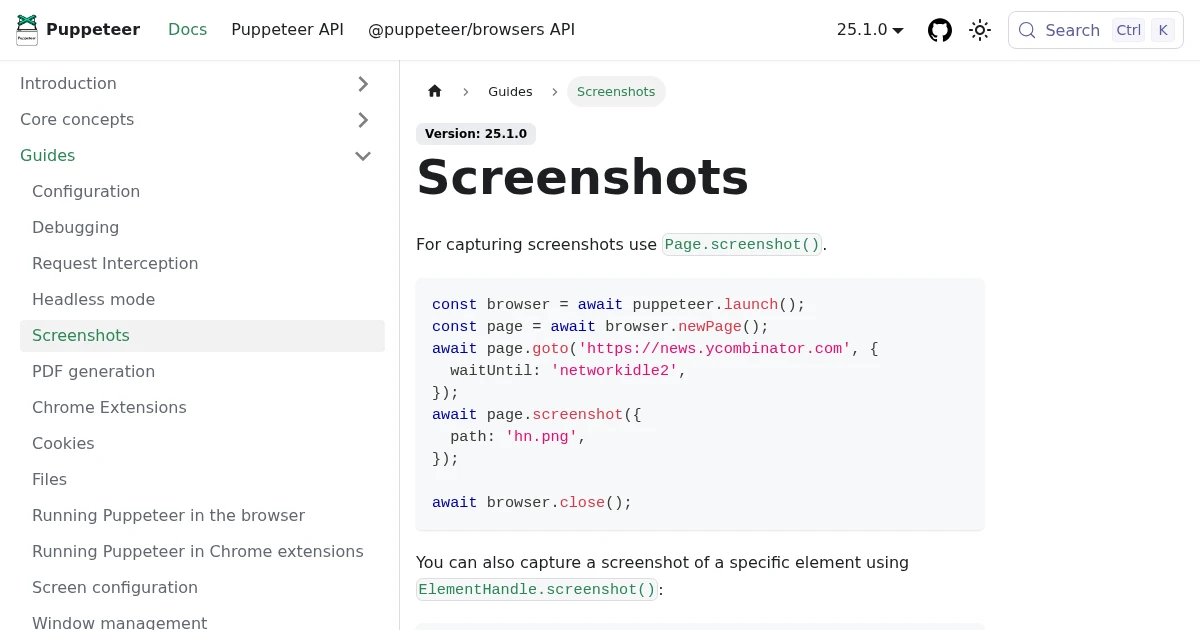
Full-Page Screenshots in Puppeteer (and When an API Is Faster)
How to take screenshots in Puppeteer: full page, specific elements, and high quality. Plus the failure modes that make people switch to a hosted screenshot API.
Jun 12, 2026 · 5 min read
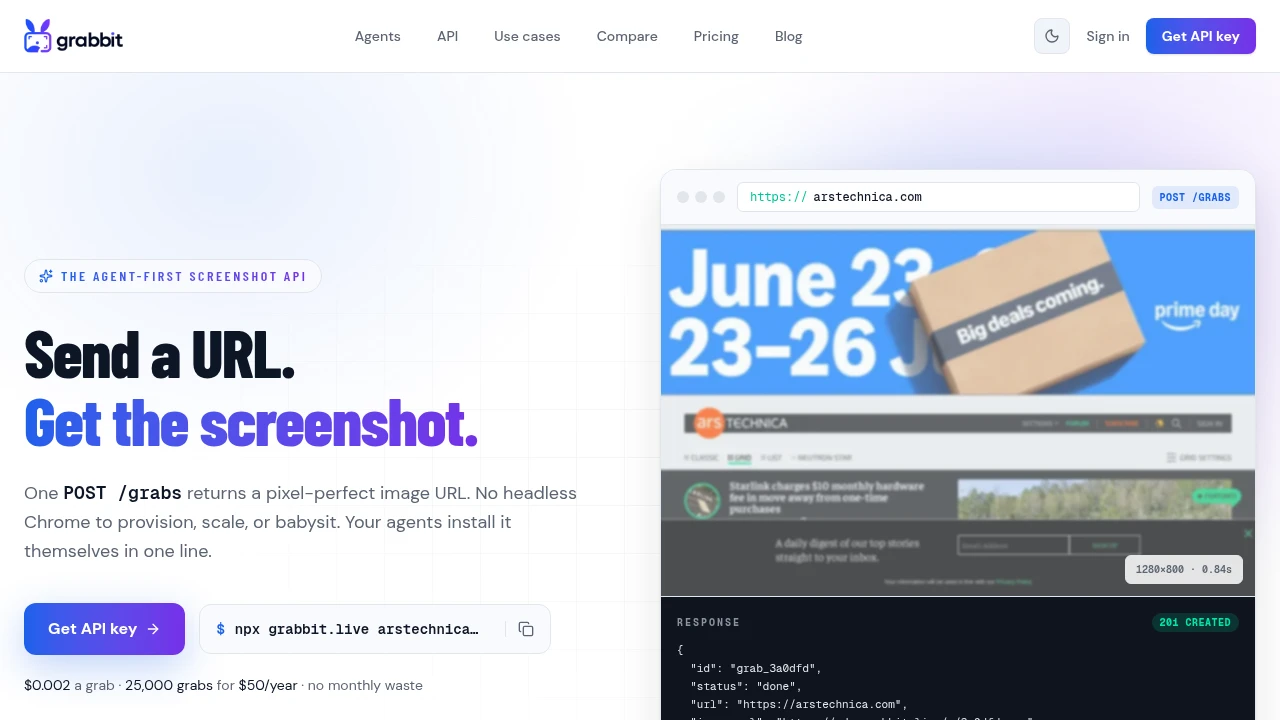
How to Take a Full-Page Screenshot (Every Method That Works in 2026)
How to take a full-page screenshot on Chrome, Firefox, Edge, Windows, Mac, iPhone, and Android, plus how to capture full pages automatically with an API.
Jun 10, 2026 · 4 min read
The Best Screenshot APIs in 2026 (An Honest Comparison)
Comparing the top screenshot APIs on billing model, per-grab cost, features, and agent support so you can pick the right one for your project.
Jun 11, 2026 · 6 min read