Dev frameworks
How to Take Screenshots in Selenium (Full Page and Element)
June 16, 2026 · 5 min read · Grabbit Team
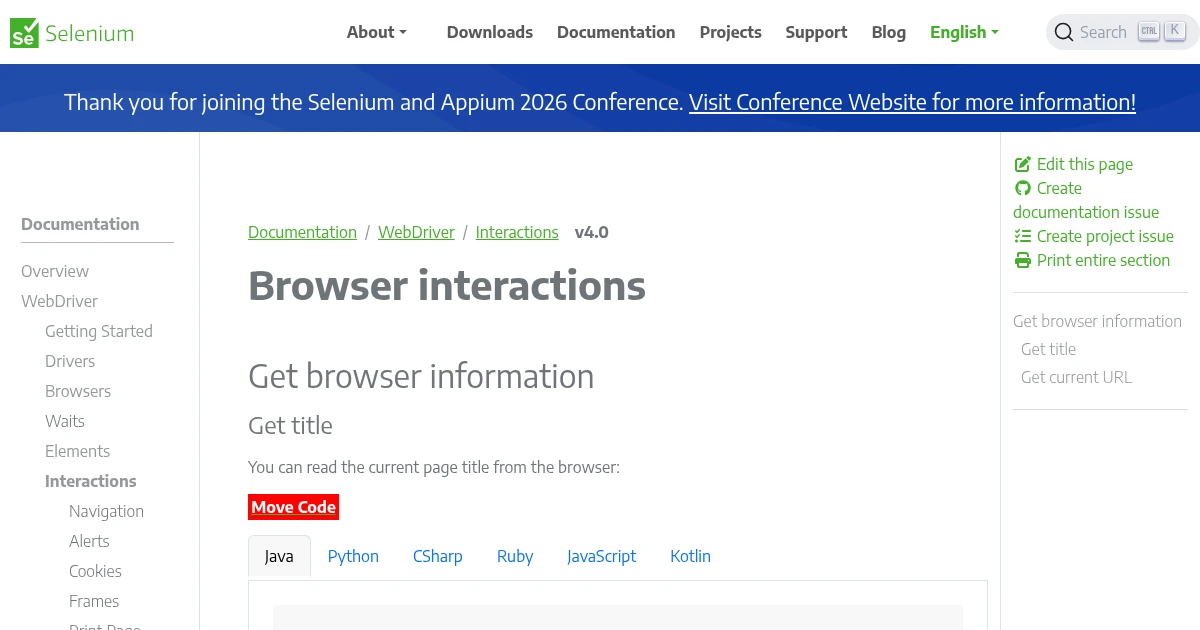
Selenium can take a screenshot in one line, but it captures only the visible viewport by default, and unlike Playwright or Puppeteer it has no built-in full-page flag. That gap is where most of the work hides. This guide covers the basic capture, the full-page workarounds Selenium actually needs, single-element shots, and the point where an API is less effort than driving a browser.
The basic Selenium screenshot
In Python, the driver captures the current window directly:
from selenium import webdriver

driver = webdriver.Chrome()
driver.get('https://example.com')
driver.save_screenshot('example.png')
driver.quit()
In Java, you cast the driver to TakesScreenshot and choose an output type:
File shot = ((TakesScreenshot) driver).getScreenshotAs(OutputType.FILE);
Both capture the visible viewport only. If the page is taller than the window, everything below the fold is missing. This is the single biggest difference from Puppeteer and Playwright, which both expose a one-line full-page option.
Full-page screenshots (the part Selenium does not do for you)
Core Selenium has no fullPage flag. You have three real options.
1. Chrome DevTools Protocol. Selenium 4 can send CDP commands. Page.captureScreenshot with captureBeyondViewport: true renders the entire page:
result = driver.execute_cdp_cmd('Page.captureScreenshot', {
    'captureBeyondViewport': True,
    'fromSurface': True,
})
import base64
with open('full.png', 'wb') as f:
    f.write(base64.b64decode(result['data']))
2. Firefox's native method. GeckoDriver exposes a full-page call that Chrome does not:
driver.get_full_page_screenshot_as_file('full.png') # Firefox only
3. Scroll and stitch. Resize the window to the full scroll height, then capture. This is brittle on lazy-loaded pages and pages with position: fixed headers, which repeat or float in the stitched result.
The takeaway: full-page capture in Selenium is browser-specific and more code than the other tools. If full page is your main need, that is worth knowing before you build on it.
Screenshotting a single element
Call the screenshot method on the WebElement instead of the driver. Selenium crops to the element's bounding box:
from selenium.webdriver.common.by import By

card = driver.find_element(By.ID, 'pricing-card')
card.screenshot('card.png')
If the element is below the fold, scroll it into view first so it actually renders before the capture:
driver.execute_script('arguments[0].scrollIntoView();', card)
Waiting so the capture is not blank
The most common bug is capturing before the page is ready. Use an explicit wait keyed to something real on the page rather than a fixed sleep:
from selenium.webdriver.support.ui import WebDriverWait
from selenium.webdriver.support import expected_conditions as EC

WebDriverWait(driver, 10).until(
    EC.presence_of_element_located((By.ID, 'pricing-card'))
)
driver.save_screenshot('ready.png')
For web fonts specifically, wait on document.fonts.ready via execute_script, otherwise the screenshot can show a fallback font.
Taking the screenshot headless (and in CI)
On a server or in a CI runner there is no display, so Chrome has to run headless. The capture code is identical; the difference is the driver options. Add --headless=new and, on Linux runners, the two flags that stop Chrome from crashing in a container:
from selenium import webdriver

options = webdriver.ChromeOptions()
options.add_argument('--headless=new')
options.add_argument('--no-sandbox')          # required in most CI containers
options.add_argument('--disable-dev-shm-usage')  # avoids /dev/shm running out
options.add_argument('--window-size=1280,2000')  # headless has no real window; set one

driver = webdriver.Chrome(options=options)
driver.get('https://example.com')
driver.save_screenshot('example.png')
driver.quit()
Two things bite people specifically in headless mode. First, headless Chrome has no window, so the viewport defaults to a small size unless you set --window-size, and a too-small window is a common cause of a cut-off capture. Second, the CI image still needs a real Chrome plus a matching ChromeDriver installed, so your pipeline provisions and version-matches both before the first screenshot runs. That setup, not the capture, is where most CI screenshot jobs actually fail.
Where running Selenium just for screenshots gets expensive
Selenium is a browser-testing framework. Using it only to produce images means you own everything that comes with driving a browser, none of which is the screenshot itself:
- Drivers and browsers. You provision ChromeDriver or GeckoDriver, keep it matched to the browser version, and install the browser plus its system libraries in every environment.
- Full-page workarounds. The CDP or scroll-and-stitch code above is yours to maintain across browser updates.
- Memory and concurrency. A browser per job, closed on every error path, and a pool with back-pressure once you capture at volume.
If screenshots are the goal and the test suite is not, that is a lot of moving parts for an image.
The same capture as an API call
A screenshot API runs the browser for you. The full-page capture that took browser-specific code above becomes one request, with a real full_page flag:
curl https://api.grabbit.live/v1/grabs \
  -H "Authorization: Bearer sk_live_..." \
  -H "Content-Type: application/json" \
  -d '{
    "url": "https://example.com",
    "width": 1280,
    "full_page": true,
    "format": "webp"
  }'
The response includes a hosted image_url you can use directly:
{
  "id": "grb_01jx...",
  "status": "done",
  "image_url": "https://cdn.grabbit.live/grabs/grb_01jx....webp",
  "width": 1280,
  "format": "webp",
  "bytes": 48210,
  "execution_ms": 1180
}
The Selenium patterns map onto request parameters: viewport size is width (320 to 1920) and height (240 to 1080), full page is full_page, the element-screenshot pattern is a selector field, and the explicit wait becomes delay_ms (0 to 10000). format is png, jpeg, or webp.
Which to use
Reach for Selenium when you already run a Selenium test suite and a screenshot is one assertion or artifact among many. Reach for an API when screenshots are the actual product feature, especially if you need full-page captures and would rather not maintain CDP calls and driver versions to get them.
For the same comparison in other tools, see screenshots in Puppeteer and screenshots in Playwright. If you are weighing hosted options, the honest comparison of screenshot APIs covers the trade-offs without the marketing.
FAQ
- Can Selenium take a screenshot?
- Yes. Selenium WebDriver implements the TakesScreenshot interface, so any driver can capture the current browser window. In Python you call driver.save_screenshot('out.png'); in Java you cast the driver to TakesScreenshot and call getScreenshotAs(OutputType.FILE). By default it captures only the visible viewport, not the full scrolling page.
- How do I take a full-page screenshot in Selenium?
- Selenium's standard screenshot only captures the viewport. For the full page you either drive the Chrome DevTools Protocol (Page.captureScreenshot with captureBeyondViewport), use Firefox's get_full_page_screenshot_as_file, or scroll and stitch the page yourself. Unlike Playwright and Puppeteer, there is no single full_page flag in core Selenium.
- How do I screenshot a specific element in Selenium?
- Call screenshot() (Python) or getScreenshotAs() (Java) on the WebElement instead of the driver. For example: driver.find_element(By.ID, 'card').screenshot('card.png'). Selenium crops the image to that element's bounding box. Scroll the element into view first if it is below the fold.
- Why is my Selenium screenshot blank or cut off?
- The two usual causes are capturing before the page has rendered and capturing content that is below the fold. Wait for a specific element with WebDriverWait before you capture, and remember the default screenshot is viewport-only, so anything outside the visible area will be missing unless you use a full-page method.
- Is a screenshot API easier than running Selenium for screenshots?
- For screenshots specifically, often yes. Selenium is built for browser testing, so using it only to capture images means provisioning a driver, a browser, and the full-page workarounds yourself. A screenshot API takes one HTTP request with a full_page flag and returns a hosted image. Use Selenium when you are already running a test suite and a screenshot is one more step.
Capture any website with one API call
Get a free test key and capture your first screenshot in two minutes.
Written by
Grabbit Team
Screenshots as a service
The team behind Grabbit, the screenshot API for developers and AI agents. We write about web capture, rendering, and automating screenshots at scale.
Keep reading
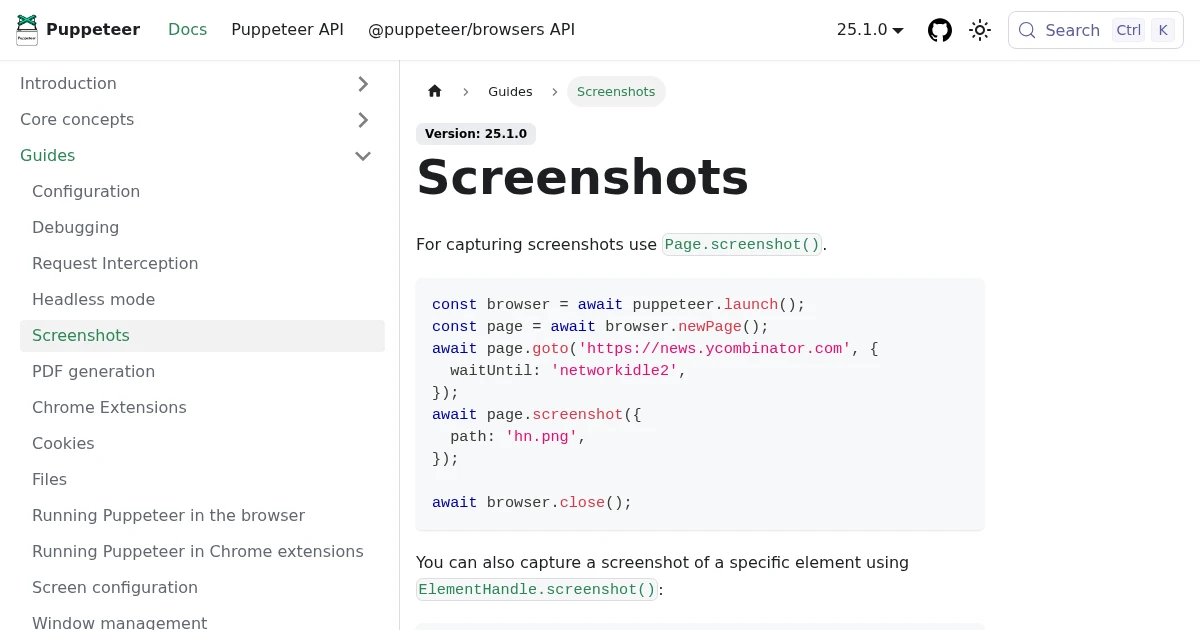
Full-Page Screenshots in Puppeteer (and When an API Is Faster)
How to take screenshots in Puppeteer: full page, specific elements, and high quality. Plus the failure modes that make people switch to a hosted screenshot API.
Jun 12, 2026 · 5 min read
How to Take Screenshots in Playwright (Full Page, Elements, CI)
Everything you need to take screenshots in Playwright: the viewport default, full-page captures, element-level shots, and wiring it all into CI. Plus when to reach for an API instead.
Jun 14, 2026 · 10 min read
The Best Screenshot APIs in 2026 (An Honest Comparison)
Comparing the top screenshot APIs on billing model, per-grab cost, features, and agent support so you can pick the right one for your project.
Jun 11, 2026 · 6 min read