Dev frameworks
How to Take Screenshots with Headless Chrome (and the API Alternative)
July 14, 2026 · 6 min read · Grabbit Team
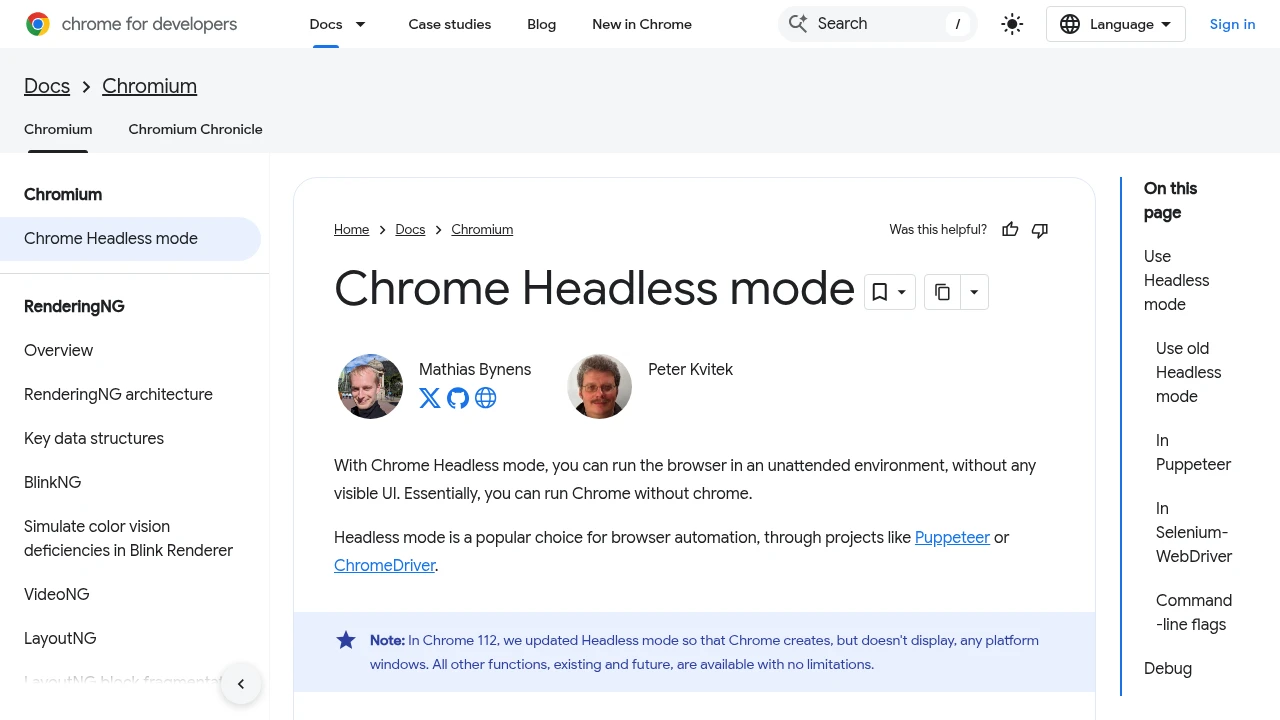
You can take a screenshot with headless Chrome in one command, no library required. The catch is that the bare command captures only the window, fires the moment the page loads, and breaks in small ways on servers. This guide shows the real command, the failure modes people actually hit, and when to reach for Puppeteer, Playwright, or a hosted API instead.
The one-line command
Chrome ships a --screenshot flag. Point it at a URL, set a window size, and it writes a PNG:
chrome --headless --screenshot=out.png --window-size=1280,720 https://example.com
The binary name depends on your platform. On macOS it is buried in the app bundle, on Debian and Ubuntu it is google-chrome or chromium:
# macOS
"/Applications/Google Chrome.app/Contents/MacOS/Google Chrome" \
  --headless --screenshot=out.png --window-size=1280,720 https://example.com

# Linux
google-chrome --headless --screenshot=out.png --window-size=1280,720 https://example.com
That is the whole happy path. Chrome loads the page, paints one frame, saves out.png to the current directory, and exits. For a quick capture of a static page on your own machine, it is hard to beat.
The limits you hit almost immediately
The one-liner is a thin wrapper around a single paint, so anything past a static page starts to leak:
- No full-page capture.
--screenshotcaptures the window, not the full scrolling page. There is no--full-pageflag. If your content runs below the fold, the CLI cannot get it. - It fires on load, not on ready. The screenshot is taken when the load event fires. A page that fetches data or hydrates after that comes back blank or half-rendered, and there is no wait flag to fix it from the CLI alone.
--window-sizeregressions. New headless mode (the default since Chrome 112) is the real browser, which changed some behavior. A common report is captures that suddenly include a page header and footer or ignore--window-size. Passing--headless=oldsometimes restores the previous behavior, but old mode is on its way out.- The bottom-pixels bug. A recurring report is headless captures dropping the bottom strip of the page. It is timing and layout sensitive and hard to pin down from flags.
None of these are exotic. They are the top results when you search the error, which is why most people move off the raw CLI as soon as they need a real capture.
When to drive Chrome with a library
The moment you need to wait for the network to settle, capture a full page, or target one element, you want Puppeteer or Playwright driving the same Chrome. They add the two things the CLI is missing: waiting and full-page stitching.
import puppeteer from 'puppeteer';

const browser = await puppeteer.launch();
const page = await browser.newPage();
await page.setViewport({ width: 1280, height: 720 });
await page.goto('https://example.com', { waitUntil: 'networkidle0' });
await page.screenshot({ path: 'out.png', fullPage: true });
await browser.close();
waitUntil: 'networkidle0' waits for the network to go quiet before capturing, and fullPage: true measures the scroll height and stitches the whole page into one image. That is the fix for both the blank-capture and the cut-off problems above. For the full walkthrough, see full-page screenshots in Puppeteer, and for the same code in Node with other libraries, screenshot a website in Node.js.
The maintenance tax of running Chrome yourself
A library fixes the capture logic. It does not fix operating Chrome. Once the capture runs on a server or in CI instead of your laptop, a different set of problems shows up:
- Fonts. A slim Linux base image has no system fonts, so text renders as boxes or falls back to something that does not match production.
- Sandbox and GPU flags. You end up passing
--no-sandbox --disable-gpu --disable-dev-shm-usageto get Chrome to launch at all in a container. - Memory over time. A long-running Chrome process grows. Teams running capture at volume end up scheduling restarts to reclaim the leak, which is exactly the kind of babysitting most people would rather not own.
If browser infrastructure is your core product, that is work worth doing. If all you actually need is a screenshot of a URL, it is overhead with no payoff.
The same capture as one API call
A hosted screenshot API takes the render off your machine entirely. You send the URL over HTTP and get a hosted image back, with no Chrome to install, patch, font, or restart:
curl https://api.grabbit.live/v1/grabs \
  -H "Authorization: Bearer sk_live_..." \
  -H "Content-Type: application/json" \
  -d '{
    "url": "https://example.com",
    "width": 1280,
    "full_page": true,
    "format": "webp"
  }'
The response includes a hosted image_url you can use directly:
{
  "id": "grb_01jx...",
  "status": "done",
  "image_url": "https://cdn.grabbit.live/grabs/grb_01jx....webp",
  "width": 1280,
  "format": "webp",
  "bytes": 48210,
  "execution_ms": 1180
}
The flags you were reaching for on the CLI map onto request fields: --window-size becomes width (320 to 1920) and height (240 to 1080), the full-page capture the CLI lacks becomes full_page: true, format is png, jpeg, or webp, and the wait you could not express becomes delay_ms (0 to 10000). Add a selector to crop to one element.
Grabbit runs the same Chromium render server-side, so the output matches a real browser, and pricing is a flat $0.002 per grab. Annual-plan credits expire at term end; if you cancel, you keep them until then. Separately purchased top-up credits do not expire while your account remains active. Neither resets monthly. Synchronous test requests return free placeholder images for wiring, not live browser renders. See the screenshot API for the full parameter list, or screenshot a website from a URL for the URL-to-image pattern end to end.
Which one should you use?
- The bare
chrome --headless --screenshotcommand is right for a one-off capture of a static page on your own machine. It is zero setup and good enough when you do not need waiting or full-page. - Puppeteer or Playwright is right when you control the environment and need real waiting, full-page stitching, or element capture, and you are willing to operate Chrome.
- A hosted API is right when you do not want to run a browser at all: no fonts to install, no sandbox flags, no memory to reclaim, just a URL in and a hosted image out.
The command is genuinely one line. The question is never whether you can screenshot with headless Chrome, but whether operating Chrome is a job you want to own.
FAQ
- How do I take a screenshot with headless Chrome?
- Run Chrome from the command line with the --headless and --screenshot flags: chrome --headless --screenshot=out.png --window-size=1280,720 https://example.com. Chrome loads the page and writes out.png to the current directory. On macOS the binary is /Applications/Google Chrome.app/Contents/MacOS/Google Chrome; on Linux it is usually google-chrome or chromium.
- Why is my headless Chrome screenshot blank or cut off?
- The two common causes are capturing before the page finished loading and a viewport mismatch. Chrome's --screenshot flag fires as soon as the load event does, so pages that render after fetch or hydrate come back blank. Set --window-size to the viewport you want, and drive Chrome through Puppeteer or Playwright when you need to wait for the network to settle or an element to appear.
- Does headless Chrome take a full-page screenshot?
- The bare chrome --headless --screenshot command captures only the window, not the full scrolling page. There is no full-page flag on the CLI. To capture the whole page you drive Chrome through Puppeteer (page.screenshot({ fullPage: true })), Playwright (fullPage: true), or a screenshot API with a full_page parameter, all of which measure the scroll height and stitch the page into one image.
- What is the difference between old and new headless Chrome?
- The old headless mode was a separate lightweight implementation; the new mode (default since Chrome 112) runs the same browser as headful Chrome, so rendering matches what users see. If a capture that used to work now includes a header and footer or ignores --window-size, you are likely on the new mode. Pass --headless=old to fall back, or move to Puppeteer or Playwright for stable control.
- How do I run headless Chrome for screenshots on a server?
- Install Chrome or Chromium on the box, then run it with --headless --no-sandbox --disable-gpu and your target URL. The recurring headaches are missing system fonts (text renders as boxes), memory that grows over long-running processes, and CI images without a display. A hosted screenshot API removes the server-side Chrome entirely: you send the URL over HTTP and get a hosted image back.
Capture any website with one API call
Get a free test key and wire your first request in two minutes.
Written by
Grabbit Team
Screenshots as a service
The team behind Grabbit, the screenshot API for developers and AI agents. We write about web capture, rendering, and automating screenshots at scale.
Keep reading
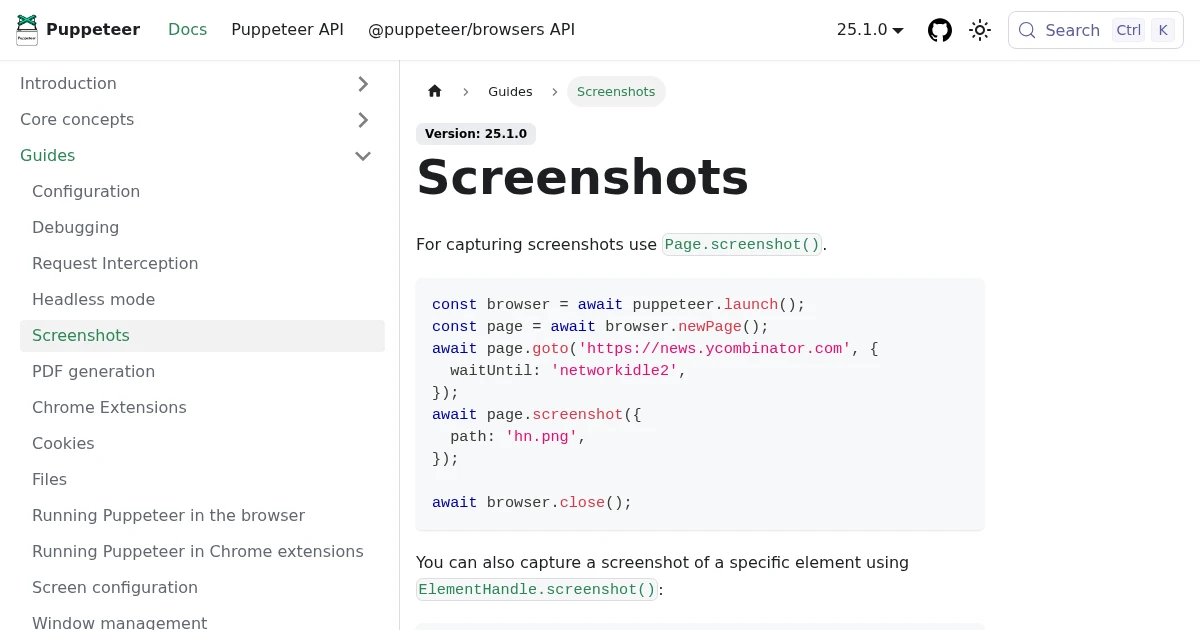
Full-Page Screenshots in Puppeteer (and When an API Is Faster)
How to take screenshots in Puppeteer: full page, specific elements, and high quality. Plus the failure modes that make people switch to a hosted screenshot API.
Jun 12, 2026 · 5 min read
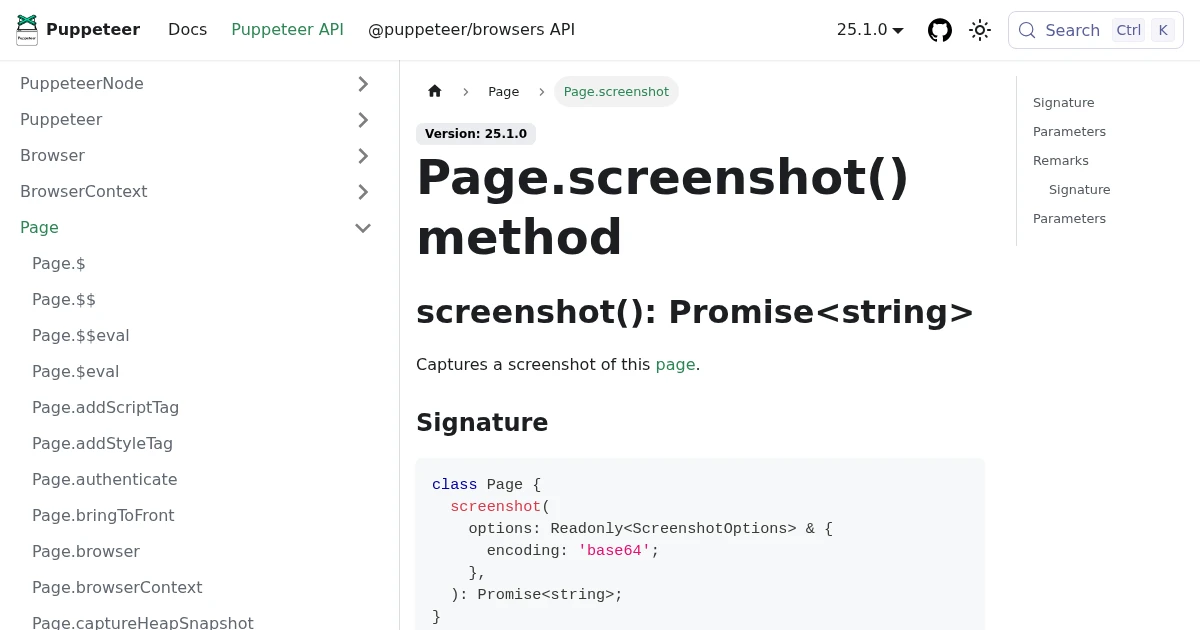
How to Take a Website Screenshot in Node.js (4 Ways)
Four ways to screenshot a website in Node.js: Puppeteer, Playwright, the capture-website wrapper, and a hosted API. Working code, the trade-offs, and when to skip running Chromium.
Jun 18, 2026 · 4 min read
How to Screenshot a Website from a URL (No Browser Needed)
Skip the headless browser setup. Learn the three ways to capture a screenshot from a URL, and when a screenshot API beats Puppeteer or Playwright for production workloads.
Jun 15, 2026 · 7 min read