Dev frameworks
Puppeteer vs Playwright for Screenshots: Which Should You Use?
June 15, 2026 · 6 min read · Grabbit Team
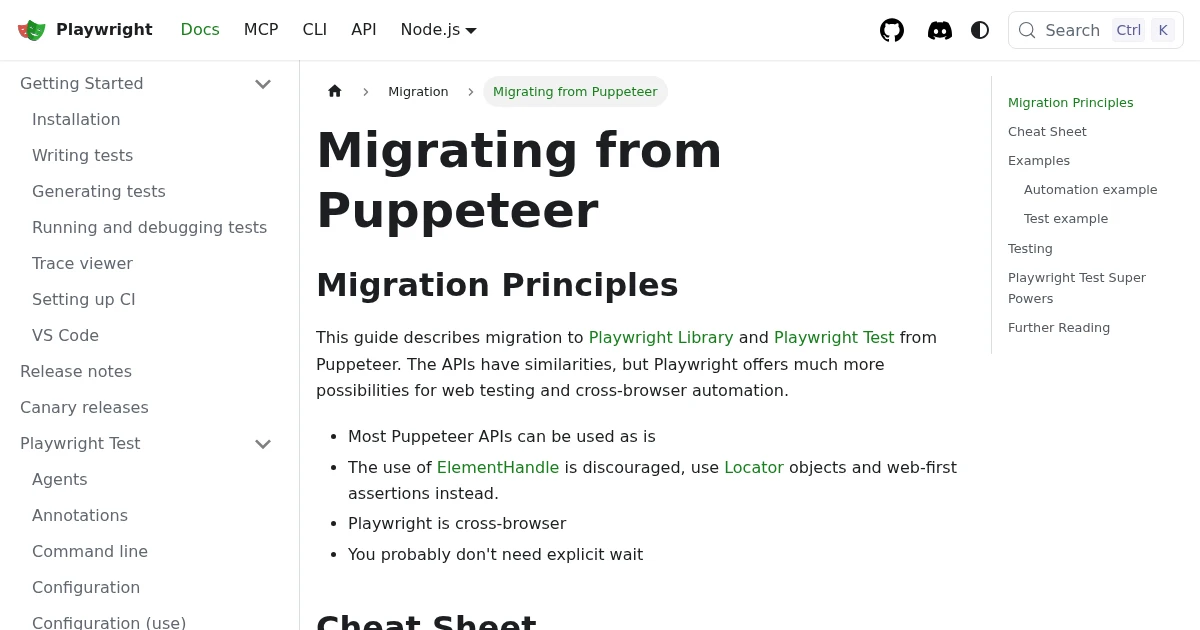
If you only need to take a screenshot, Puppeteer and Playwright are closer than the endless "which is better" debates suggest. Both control a headless browser, both capture the viewport, a full page, or a single element, and the code looks almost the same in either one. The real differences show up at the edges: how many browser engines you need, how much waiting code you want to write, and whether you should be running a browser at all. This guide compares the two specifically for screenshots, not general test automation.
The short answer
- Chromium-only, smallest footprint: Puppeteer. It is built around Chrome and the Chrome DevTools Protocol, so it does less and installs lighter.
- Cross-browser screenshots (including Safari/WebKit): Playwright. One API drives Chromium, Firefox, and WebKit.
- You want fewer flaky captures with less timing code: Playwright. Its auto-waiting fires actions after the page settles.
- You do not want to run a browser at all: neither. A hosted screenshot API takes one request and returns an image.
The rest of this post shows the actual code so you can see how small the gap is.
The same screenshot in both
Here is a viewport screenshot in Puppeteer:
import puppeteer from 'puppeteer';

const browser = await puppeteer.launch();
const page = await browser.newPage();
await page.goto('https://example.com', { waitUntil: 'networkidle0' });
await page.screenshot({ path: 'puppeteer.png' });
await browser.close();
And the equivalent in Playwright:
import { chromium } from 'playwright';

const browser = await chromium.launch();
const page = await browser.newPage();
await page.goto('https://example.com');
await page.screenshot({ path: 'playwright.png' });
await browser.close();
The one meaningful difference is hiding in the goto call. In Puppeteer you reach for waitUntil: 'networkidle0' so you do not capture before images and fonts finish loading. Playwright auto-waits for the page to reach a stable state before the screenshot fires, so you write less timing code to get a clean capture. That auto-waiting is Playwright's biggest day-to-day ergonomic win.
Full-page screenshots
Both stitch the entire scrolling page into one tall image. The flags are nearly identical.
Puppeteer:
await page.screenshot({ path: 'full.png', fullPage: true });
Playwright:
await page.screenshot({ path: 'full.png', fullPage: true });
The same caveats apply to both, because they come from the page, not the library. Lazy-loaded sections that only render on scroll can come back missing, and position: fixed headers can repeat or float over the stitched image. The fix in either tool is to scroll the page to the bottom yourself before capturing so every section renders. See how to take a full-page screenshot for the scroll-to-bottom pattern that works in both.
Single-element screenshots
To capture one component, both libraries crop to an element's bounding box.
Puppeteer gets an ElementHandle and calls screenshot() on it:
const card = await page.$('#pricing-card');
await card.screenshot({ path: 'card.png' });
Playwright uses a locator, which auto-waits for the element to be ready:
await page.locator('#pricing-card').screenshot({ path: 'card.png' });
This is where auto-waiting earns its keep. In Puppeteer, page.$() returns null if the element has not rendered yet, so you add await page.waitForSelector('#pricing-card') first. Playwright's locator waits for you, so there is less to race.
Cross-browser: Playwright's real advantage
This is the one feature that is not a tie. Puppeteer is built for Chromium and Chrome (its Firefox support is experimental). Playwright drives Chromium, Firefox, and WebKit with the same API, which means you can capture the same page in the engine behind Safari without a Mac in the loop:
import { webkit } from 'playwright';

const browser = await webkit.launch();
const page = await browser.newPage();
await page.goto('https://example.com');
await page.screenshot({ path: 'safari-engine.png' });
await browser.close();
If your screenshots need to reflect how a page actually renders in Safari (different font rendering, different layout quirks), Playwright is the answer and Puppeteer is not.
Speed and memory
For a single screenshot, the library is rarely the bottleneck. Most of the wall-clock time is the page loading, not Puppeteer or Playwright. On simple Chrome-only scripts Puppeteer can be marginally faster because it does less setup, and its memory footprint is a touch smaller. Playwright's auto-waiting trades a little raw speed for more consistent captures under load, which tends to matter more once screenshots run in CI or production. If you are choosing on speed alone, you are probably optimizing the wrong thing.
Where both tools stop being worth it
Everything above runs fine on your laptop. The cost shows up in production, and it is identical for Puppeteer and Playwright because both ship the same headless browser problem:
- Provisioning. Headless Chromium (and Firefox, and WebKit) need a long list of system libraries. Slim containers and serverless functions hit missing-dependency errors before the first pixel.
- Memory and zombie processes. A browser not closed on every error path leaks memory and orphans processes until the box falls over.
- Patching. Browser engines ship security updates constantly. A long-lived screenshot service is now a browser fleet you have to keep current.
- Concurrency. One browser does one job at a time well. Ten thousand captures a day means a pool, a queue, and back-pressure to build and operate.
None of that is screenshot code. It is infrastructure, and it is the same whether you picked Puppeteer or Playwright.
The same capture as one API call
When screenshots are a production feature rather than a step inside an existing test or scraping job, a hosted screenshot API skips the browser entirely. Here is the full-page capture above as a single request to Grabbit:
curl https://api.grabbit.live/v1/grabs \
  -H "Authorization: Bearer sk_live_..." \
  -H "Content-Type: application/json" \
  -d '{
    "url": "https://example.com",
    "width": 1280,
    "full_page": true,
    "format": "webp"
  }'
The response includes a hosted image_url you can use directly:
{
  "id": "grb_01jx...",
  "status": "done",
  "image_url": "https://cdn.grabbit.live/grabs/grb_01jx....webp",
  "width": 1280,
  "format": "webp",
  "bytes": 48210,
  "execution_ms": 1180
}
The options you reach for in both libraries map onto request parameters: fullPage becomes full_page, the element handle or locator becomes a selector field, and the manual wait becomes delay_ms (0 to 10000). Width accepts 320 to 1920, height 240 to 1080, and format is png, jpeg, or webp.
Which to choose
- Already running Puppeteer for Chrome work? Keep it. Adding a screenshot is one line.
- Need cross-browser captures, or want less timing code? Playwright.
- Screenshots are a feature you ship, not a side effect of a test? Skip the browser and call an API.
For the framework-specific deep dives, see taking screenshots in Puppeteer and taking screenshots in Playwright. If you are weighing hosted options, the honest comparison of screenshot APIs covers the trade-offs without the marketing.
FAQ
- Is Puppeteer better than Playwright for screenshots?
- For Chromium-only screenshots, the two are close: both capture the viewport, full pages, and single elements with nearly identical code. Playwright pulls ahead when you need the same screenshot in Firefox and WebKit, or when you want built-in auto-waiting so captures fire after the page settles. Puppeteer is the simpler pick when you are already on Chrome and want the smallest dependency.
- Is Playwright a fork of Puppeteer?
- No, but it shares DNA. The team that originally built Puppeteer at Google later created Playwright at Microsoft, so the APIs look similar and migrating between them is straightforward. Playwright was written from scratch with cross-browser support and auto-waiting as first-class features rather than add-ons.
- Which is faster, Puppeteer or Playwright?
- For a single Chromium screenshot the difference is small and usually dominated by page load time, not the library. Puppeteer can edge ahead on simple Chrome-only scripts because it does less setup. Playwright's auto-waiting can make captures more consistent under load, which matters more than raw speed once you are running screenshots in CI or production.
- Does Playwright support more browsers than Puppeteer?
- Yes. Playwright drives Chromium, Firefox, and WebKit (the engine behind Safari) with one API, so you can capture the same page in three engines. Puppeteer focuses on Chromium and Chrome, with experimental Firefox support. If you need a Safari-accurate screenshot, Playwright is the clear choice.
- Do I need Puppeteer or Playwright to take a screenshot of a URL?
- No. Both require you to install, run, and scale headless Chromium yourself. If you just need an image back from a URL, a hosted screenshot API takes one HTTP request and returns a hosted image, with no browser to provision or patch. Reach for Puppeteer or Playwright when you are already driving a browser for tests or scraping.
Capture any website with one API call
Get a free test key and capture your first screenshot in two minutes.
Written by
Grabbit Team
Screenshots as a service
The team behind Grabbit, the screenshot API for developers and AI agents. We write about web capture, rendering, and automating screenshots at scale.
Keep reading
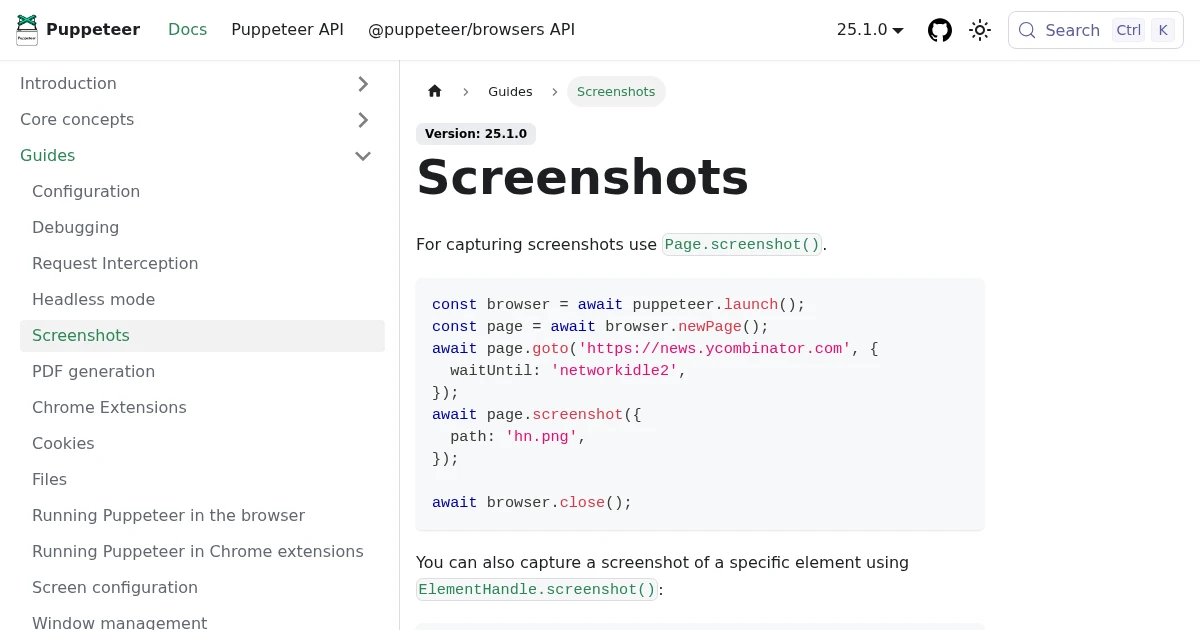
Full-Page Screenshots in Puppeteer (and When an API Is Faster)
How to take screenshots in Puppeteer: full page, specific elements, and high quality. Plus the failure modes that make people switch to a hosted screenshot API.
Jun 12, 2026 · 5 min read
How to Take Screenshots in Playwright (Full Page, Elements, CI)
Everything you need to take screenshots in Playwright: the viewport default, full-page captures, element-level shots, and wiring it all into CI. Plus when to reach for an API instead.
Jun 14, 2026 · 10 min read
The Best Screenshot APIs in 2026 (An Honest Comparison)
Comparing the top screenshot APIs on billing model, per-grab cost, features, and agent support so you can pick the right one for your project.
Jun 11, 2026 · 6 min read