Capture guides
How to Automate Website Screenshots in GitHub Actions
June 28, 2026 · 7 min read · Grabbit Team
To screenshot a website in GitHub Actions, add a workflow step that sends the URL to a screenshot API and saves the image it returns. The API renders the page in a hosted browser, so the step is a single curl command with no browser to install in the runner and no headless-Chrome flags to debug. That is the short answer. The rest of this guide covers the full workflow, the difference between capturing a URL and capturing your test run, scheduled snapshots, and the headless-Chrome path if you would rather run the browser yourself.
Two different jobs people call "screenshot in CI"
The search results for this mix two tasks that need different tools. Sort out which one you have first:
- Capture an external URL. You want an image of a live page (your production site, a staging deploy, a competitor) as part of a workflow. This is a render-the-URL problem, and the cleanest path is one API request. Most of this guide is about this.
- Capture the app under test. Your job already runs Playwright, Cypress, or a Compose UI test, and you want the screenshot that test produced (often on failure) attached to the run. That image comes from the test framework itself, then
actions/upload-artifactcarries it out. We cover that path near the end.
If you are setting up visual regression, you likely want both: the test framework captures the app it is driving, and a hosted render gives you consistent baselines for pages and external URLs the test does not control. Visual regression testing goes deeper on that split.
Why headless Chrome is painful inside a runner
The reason "screenshot github actions not working" is a real related search: CI runners are a hostile place to run a browser. The recurring failure modes are:
- Timing. The capture fires before the page finishes loading, so you get a blank or half-rendered image. You have to wait for network idle, not just
DOMContentLoaded. - Fonts. The Ubuntu runner ships a minimal font set. Pages that use system or web fonts render with tofu boxes or fall back to a different face, so the screenshot does not match what users see.
- Viewport. The default window size is not the viewport you want, so the layout that renders is not the layout you meant to capture.
- Maintenance. Every Chromium bump can change a flag, and you own the dependency list, the version pinning, and the install time on every run.
None of this is hard once, but it is a standing tax on the workflow. Offloading the render removes it.
The one-step workflow: screenshot a URL
Here is a complete workflow that captures a URL on every push and saves the image as an artifact. The capture itself is one step.
# .github/workflows/screenshot.yml
name: Screenshot site
on: [push]

jobs:
  capture:
    runs-on: ubuntu-latest
    steps:
      - name: Capture screenshot
        run: |
          IMAGE_URL=$(curl -s https://api.grabbit.live/v1/grabs \
            -H "Authorization: Bearer ${{ secrets.GRABBIT_API_KEY }}" \
            -H "Content-Type: application/json" \
            -d '{
              "url": "https://example.com",
              "width": 1280,
              "height": 720,
              "format": "webp"
            }' | jq -r '.image_url')
          curl -s "$IMAGE_URL" -o screenshot.webp

      - name: Upload artifact
        uses: actions/upload-artifact@v4
        with:
          name: site-screenshot
          path: screenshot.webp
What each piece does:
- The capture step POSTs the URL to the API.
widthpins the desktop layout,heightgives a 16:9 above-the-fold crop, andformatofwebpkeeps the artifact small. The response is JSON;jqpulls out theimage_url. - The second
curldownloads the hosted image into the workspace asscreenshot.webp. actions/upload-artifactattaches that file to the run, so you can open it from the run summary.
Store your key as a repository secret (GRABBIT_API_KEY) and reference it with ${{ secrets.GRABBIT_API_KEY }} so it never lands in the workflow file. The runner needs no browser, no font install, and no apt-get step. ubuntu-latest already has curl and jq.
For pages whose content loads after the first paint, add "delay_ms": 800 so lazy images settle before the capture. To capture the whole document instead of the top crop, set "full_page": true and drop height. To capture one component, such as a hero or a pricing card, pass "selector": "#hero".
Screenshot on a schedule
A common reason to put captures in CI is to build a running history: a daily snapshot of your landing page or a dashboard. Swap the push trigger for a schedule and the same workflow runs on a cron cadence with no commit needed.
on:
  schedule:
    - cron: "0 9 * * *" # every day at 09:00 UTC
  workflow_dispatch: # also allow a manual run
Each run captures the URLs you list and uploads the images. Add a commit step if you want the snapshots versioned in the repo, or keep them as artifacts if you only need recent history. To capture several pages, loop over a list of URLs and call the API once per URL; how to screenshot a list of URLs covers that loop.
Screenshot the app your test is driving
If your job already runs a browser test, the screenshot comes from the test, not from a separate render. Capture it in the framework and upload the file:
- Playwright: call
await page.screenshot({ path: 'shot.png' }), or let the runner capture on failure withscreenshot: 'only-on-failure'in your config. The artifacts land intest-results/. - Cypress:
cy.screenshot()writes tocypress/screenshots/, and the runner captures automatically on a failed test.
Then attach them:
      - name: Upload test screenshots
        if: always() # upload even when the test failed
        uses: actions/upload-artifact@v4
        with:
          name: test-screenshots
          path: test-results/
The if: always() matters: without it, a failed test step skips the upload, and the failure screenshot you most want is the one you lose. For the full setup of capturing inside a Playwright run and comparing against a baseline, see visual testing in Playwright CI.
When to use the API vs the framework
A quick rule:
- Use the API when you are capturing a URL the workflow does not run: production, a deployed preview, an external site, or a page you want a consistent baseline of regardless of the CI environment. One request, no browser to maintain, and the same render every time because the font set and viewport are fixed on the API's side.
- Use the framework when you are capturing the app the job is already driving through a test, especially failure screenshots tied to a specific assertion.
Many pipelines use both, and that is fine. The point of moving the URL captures to an API is that the part of CI most likely to break (a headless browser on a minimal runner) becomes an HTTP call that does not.
Putting it together
To automate website screenshots in GitHub Actions: POST the URL to a screenshot API in a single workflow step, download the returned image, and upload it as an artifact. Add a schedule trigger for daily snapshots, and reach for your test framework's own screenshot for the app under test. The runner stays clean, the captures stay consistent, and there is no browser to install or keep working.
For the full set of capture options (viewport, format, full-page, selector, delay) see the screenshot API. For running captures across many URLs on a schedule, see automated screenshots. And if you are wiring screenshots into a test suite rather than a plain workflow, visual regression testing covers the baseline-and-compare loop end to end.
FAQ
- How do I take a screenshot in GitHub Actions?
- Add a workflow step that POSTs the URL to a screenshot API and saves the image it returns. The API renders the page in a hosted browser, so the step is a single curl command with no Chromium to install in the runner. If you instead want to screenshot a test running inside the job, use your test framework (Playwright's page.screenshot or Cypress's cy.screenshot) and upload the file as an artifact.
- Why are my screenshots blank or failing in GitHub Actions?
- The usual causes are the headless browser starting before the page finished loading, missing fonts on the Ubuntu runner, or the runner's default viewport being too small. A hosted screenshot API sidesteps all three: it waits for load, ships a consistent font set, and lets you pin the viewport with width and height. If you are running headless Chrome yourself, add an explicit wait for network idle, install the fonts your page uses, and set a fixed window size.
- How do I save a screenshot as an artifact in GitHub Actions?
- Capture the image to a file in the workspace, then use actions/upload-artifact to attach it to the run. With an API you can pipe the response straight to disk: curl the endpoint, parse the returned image_url, and download it to a path, then upload that path. The artifact is then downloadable from the run summary for review.
- Can I screenshot a website on a schedule with GitHub Actions?
- Yes. Add a schedule trigger with a cron expression to your workflow and it runs on a cadence (for example, daily) without a push. Each run captures the URLs you list and stores the images, which is how people build daily snapshots of a landing page or a dashboard. Pair it with an artifact upload or a commit step to keep a history.
- Do I need to install a browser to screenshot in CI?
- Not if you use a hosted screenshot API: the browser runs on the API's side, so your workflow only makes an HTTP request. If you screenshot with Puppeteer or Playwright directly, you do install a browser in the runner, which adds setup time and the maintenance of font, dependency, and version pinning. The API path trades that maintenance for one request per capture.
Capture any website with one API call
Get a free test key and capture your first screenshot in two minutes.
Written by
Grabbit Team
Screenshots as a service
The team behind Grabbit, the screenshot API for developers and AI agents. We write about web capture, rendering, and automating screenshots at scale.
Keep reading
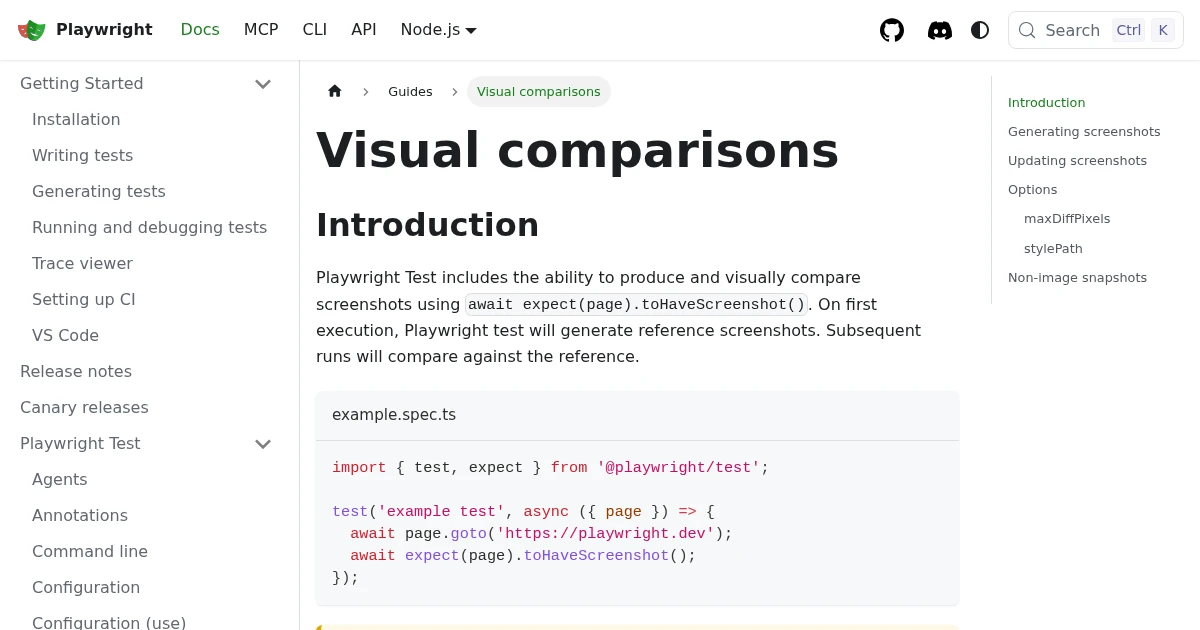
Playwright Visual Regression Testing: Catch UI Bugs in CI
Set up visual regression testing in Playwright with toHaveScreenshot: baselines, diff thresholds, the CI flake problem, and where a screenshot API fits as a stable baseline source.
Jun 17, 2026 · 5 min read
How to Screenshot a Website from a URL (No Browser Needed)
Skip the headless browser setup. Learn the three ways to capture a screenshot from a URL, and when a screenshot API beats Puppeteer or Playwright for production workloads.
Jun 15, 2026 · 7 min read
Visual Regression Testing: A Practical Guide for 2026
What visual regression testing is, how the baseline-and-diff workflow works, the best tools, and how consistent screenshots keep your visual tests from going flaky.
Jun 11, 2026 · 4 min read