Dev frameworks
How to Run Selenium in Docker for Screenshots (and the Ops Tax It Adds)
August 17, 2026 · 7 min read · Grabbit Team
Running Selenium in Docker to capture screenshots is a well-trodden path, and the setup is short. The reason people still end up searching for it is not the happy path. It is the three failure modes underneath: a blank white image, a Chromium crash halfway through a run, and a session not created error that traces back to a version mismatch you did not know you had.
This guide covers the working setup with the official image, a runnable Python example, the errors that actually show up, and the honest boundary where containerizing a browser stops being worth it.
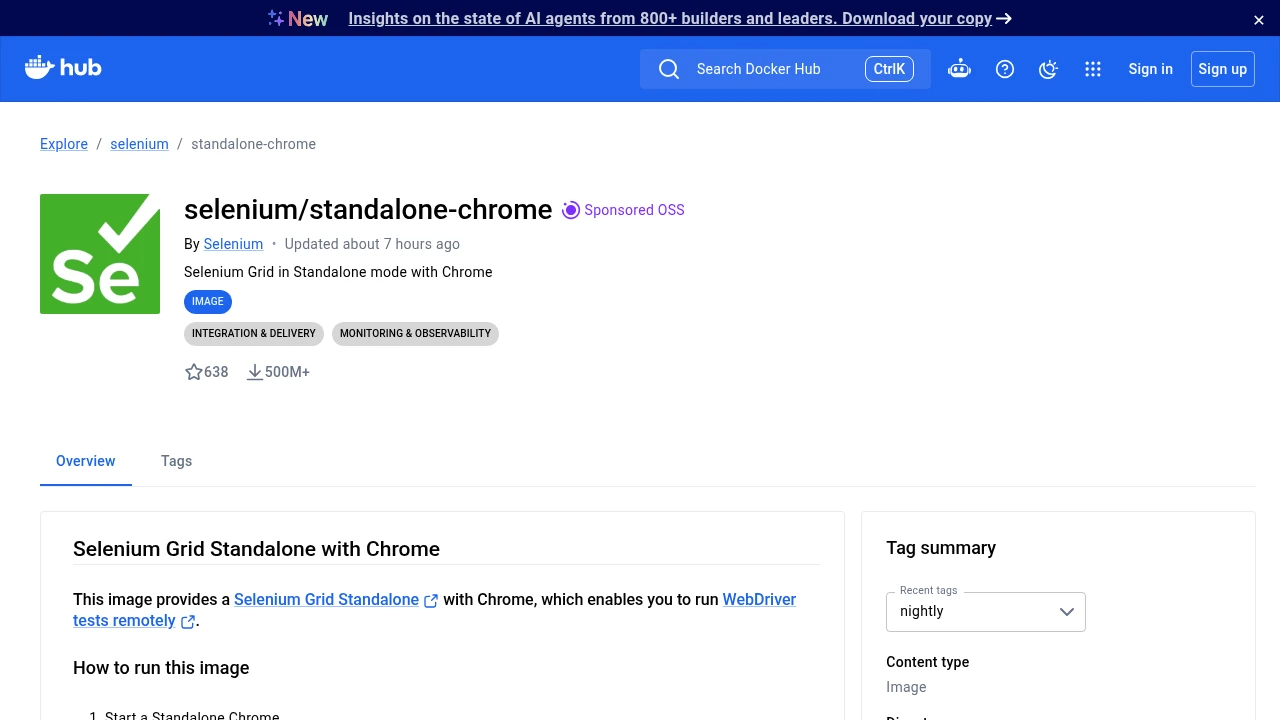
Use the official standalone-chrome image
Selenium publishes an image that bundles Chrome, chromedriver, and their system libraries, all versioned together:
docker run -d -p 4444:4444 --shm-size=2g selenium/standalone-chrome:latest
That starts a Selenium Grid standalone with a WebDriver endpoint on port 4444. The --shm-size=2g is not optional in practice: Chromium leans on shared memory, Docker's default /dev/shm is 64MB, and the default is exactly enough to make the browser start fine and then die partway through a page. Raise it up front and you skip the most common crash.
The distinction that matters: the browser runs inside the container, but your automation code does not have to. You connect to it over the network with a Remote WebDriver, so nothing but Docker needs to be installed on the host.
A working Python example
With the container running, this connects to it, loads a page, waits for it to paint, and saves a PNG:
from selenium import webdriver
from selenium.webdriver.chrome.options import Options
from selenium.webdriver.common.by import By
from selenium.webdriver.support.ui import WebDriverWait
from selenium.webdriver.support import expected_conditions as EC

options = Options()
options.add_argument("--headless=new")
options.add_argument("--window-size=1280,720")
options.add_argument("--disable-dev-shm-usage")

driver = webdriver.Remote(
    command_executor="http://localhost:4444/wd/hub",
    options=options,
)

try:
    driver.get("https://example.com")
    WebDriverWait(driver, 10).until(
        EC.presence_of_element_located((By.TAG_NAME, "h1"))
    )
    driver.save_screenshot("example.png")
finally:
    driver.quit()
The three Chrome options carry their weight. --headless=new is Chrome's modern headless mode, which renders the same as headed Chrome instead of the old separate code path. --window-size sets the viewport, because headless defaults to a small window and a small window is a small screenshot. --disable-dev-shm-usage is the belt to the --shm-size braces: it moves shared memory to /tmp, which keeps Chromium alive even when /dev/shm is tight.
The WebDriverWait is the part most first attempts skip, and it is why they come back with a blank image.
Why the screenshot comes back blank
save_screenshot captures whatever is painted at the instant you call it. Call it immediately after driver.get() and you photograph the page mid-load: no images, no web fonts, no JavaScript-rendered content. On a modern single-page app that means a white rectangle.
The fix is to wait for a real signal that the page is ready, not a fixed guess. Waiting on a specific element with WebDriverWait is the precise version. When the content you need is drawn by JavaScript after the initial elements appear, add a short explicit pause before capturing:
import time

driver.get("https://example.com/dashboard")
WebDriverWait(driver, 10).until(
    EC.presence_of_element_located((By.CSS_SELECTOR, "[data-loaded]"))
)
time.sleep(1)  # let late-rendering charts finish painting
driver.save_screenshot("dashboard.png")
A blank image with no error is nearly always this. A blank image where the whole viewport is one flat color can also mean the window never got sized, so confirm --window-size is set.
The errors you will actually hit
session not created: This version of ChromeDriver only supports Chrome version N. A mismatch between Chrome and chromedriver. This is the reason the official image exists: it pins the two together. If you built your own image and hit this, you now own the job of upgrading both in lockstep on every Chrome bump.
Chromium crashes mid-run. Shared memory. Start the container with --shm-size=2g and pass --disable-dev-shm-usage in the options. Use both; they solve the same problem from opposite ends.
The screenshot only shows the top of the page. save_screenshot captures the viewport, not the full document. Either set the window height to the page's full scroll height before capturing, or use Chrome DevTools Protocol, which renders the whole page in one pass:
result = driver.execute_cdp_cmd(
    "Page.captureScreenshot",
    {"format": "png", "captureBeyondViewport": True},
)
connection refused on port 4444. The container is still booting. Selenium Grid takes a couple of seconds to come up, so poll http://localhost:4444/wd/hub/status until it reports ready before your first connection.
Works locally, fails in CI. Usually the container did not get enough shared memory on the CI runner, or the image tag drifted. Pin the image tag and pass --shm-size explicitly in the CI job rather than relying on a default.
When Docker is the right call, and when it is not
Containerizing Selenium buys you a reproducible browser environment, and that is worth the setup cost when your automation is doing browser work: logging into an app, stepping through a multi-page flow, filling forms, asserting on the result. There you need the whole browser under your control, and a container is how you make "the whole browser" identical on a laptop and a CI runner.
The calculation flips when the browser is incidental. A large share of Selenium-in-Docker setups exist to produce one thing: an image of a page. A dashboard snapshot, an OG card, a nightly capture of a report, a thumbnail for a listing. There the container is not giving you determinism you need, it is giving you a browser you now have to maintain, so that an HTTP request can come back with a PNG. That maintenance is the real cost, and it is exactly the tax developers describe: self-hosted Chromium at concurrency is where teams lose weekends to memory creep, sticky workers, and restart storms.
If the job is just "URL in, image out," the render can move off your infrastructure entirely:
curl -sS https://api.grabbit.live/v1/grabs \
  -H "Authorization: Bearer sk_live_..." \
  -H "Content-Type: application/json" \
  -d '{
    "url": "https://example.com/dashboard",
    "width": 1280,
    "full_page": true,
    "delay_ms": 1000,
    "format": "webp"
  }'
The response carries an image_url pointing at the stored capture. No container to build, no Chrome and chromedriver versions to keep aligned, no --shm-size to remember, nothing to rebuild when a base image ships a new glibc.
The parameters map closely to the Selenium options you would otherwise write: width (320 to 1920) sets the viewport the way --window-size does, full_page renders the whole document like the CDP captureBeyondViewport call, delay_ms (0 to 10000) replaces the explicit sleep after load, selector captures a single element instead of the page, and format accepts png, jpeg, or webp.
The honest boundary: if the capture has to happen after a login, a click, or a form submission, none of this helps and Selenium in a container is the correct tool. An API call renders a URL. It does not drive a session.
Cost, honestly
The comparison is not per-request price against zero, because self-hosting is not free. A containerized browser costs CI minutes on every build, image storage, and the recurring attention of whoever fixes it when a Chrome bump breaks chromedriver or a base image runs the container out of shared memory.
Grabbit is $0.002 per live grab. Annual-plan credits reset at renewal rather than monthly, while separately purchased top-up credits do not expire while your account remains active, which can fit bursty capture work that runs hard some weeks and not at all in others. Synchronous test requests return placeholder images at no charge for wiring, not live browser captures. Some providers list lower per-grab rates, so if unit price is the only variable you care about, compare directly.
Where to go next
If you are keeping the container and just want the capture code to be right, how to take screenshots in Selenium covers the full-page, element, and CDP cases in depth. For the browser-agnostic version of the container problem, running headless Chrome in Docker walks the same setup without Selenium in the middle, and running Playwright in Docker covers the equivalent decision from the other major library. The screenshot API page covers the hosted side if you decide the browser is not worth maintaining.
FAQ
- How do I take a screenshot with Selenium running in Docker?
- Point a Selenium Remote WebDriver at a containerized browser, then call save_screenshot. The common setup is the official selenium/standalone-chrome image, which exposes a WebDriver endpoint on port 4444. Your script connects to http://localhost:4444/wd/hub with webdriver.Remote, loads the page, and saves the PNG. The browser runs in the container while your code runs wherever you like, so you never install Chrome or a driver on the host.
- Why is my Selenium screenshot blank or white in Docker?
- Almost always a timing problem, not a container problem. save_screenshot fires the moment the DOM is ready, before images, fonts, and JavaScript-rendered content have painted. Wait for a specific element with WebDriverWait, or add a short explicit sleep after load, then capture. A truly empty viewport can also mean the window size defaulted small, so set --window-size on the Chrome options.
- Do I need selenium/standalone-chrome or can I install Chrome in my own image?
- Both work. The official selenium/standalone-chrome image ships Chrome, chromedriver, and every system library they need, matched to each other, so you skip the version-alignment work. Building your own image gives you a smaller or custom base but makes you responsible for keeping Chrome and chromedriver in lockstep, which is the single most common source of session not created errors.
- How do I take a full-page screenshot in Selenium?
- Selenium's save_screenshot only captures the visible viewport. For the full page you either set the window height to the full scroll height before capturing, or use Chrome DevTools Protocol via execute_cdp_cmd('Page.captureScreenshot', {'captureBeyondViewport': True}). CDP is the reliable route because it renders the whole document in one pass instead of stitching scrolled tiles.
- Why does Chromium crash in my Selenium Docker container?
- The default shared memory in Docker is 64MB, and Chromium uses /dev/shm heavily, so it starts and then dies mid-run. Run the container with --shm-size=2g, or add --disable-dev-shm-usage to the Chrome options so it writes shared memory to /tmp instead. The official Selenium images document both fixes.
- Do I need Docker at all just to screenshot a URL?
- No. Docker earns its place when you are driving a real browser session: logging in, clicking through a flow, asserting on state. If the only output is an image of a public URL, a screenshot API returns one from a single HTTP request, with no container to build, no Chrome and chromedriver versions to keep aligned, and no shared-memory flags to remember.
Capture any website with one API call
Get a free test key and wire your first request in two minutes.
Written by
Grabbit Team
Screenshots as a service
The team behind Grabbit, the screenshot API for developers and AI agents. We write about web capture, rendering, and automating screenshots at scale.
Keep reading
How to Take Screenshots in Selenium (Full Page and Element)
How to capture screenshots in Selenium WebDriver: the viewport default, the full-page workarounds Selenium does not handle natively, single elements, and when a screenshot API is less work.
Jun 16, 2026 · 5 min read
How to Run Headless Chrome in Docker for Screenshots (and the Maintenance Tax It Adds)
A working Dockerfile for headless Chrome, the flags that make it run (--no-sandbox, --disable-dev-shm-usage, --init), the failure modes it hides, and when a hosted API is less to babysit.
Aug 6, 2026 · 6 min read
How to Run Playwright in Docker (and the Browser-Deps Tax It Adds)
Run Playwright in Docker without fighting missing browser system dependencies. The official image, a working Dockerfile, why containers exit or hang in CI, and when a screenshot API is the smaller answer.
Jul 23, 2026 · 6 min read