OG images
How to Fix WhatsApp Link Previews (Open Graph for WhatsApp)
July 9, 2026 · 8 min read · Grabbit Team
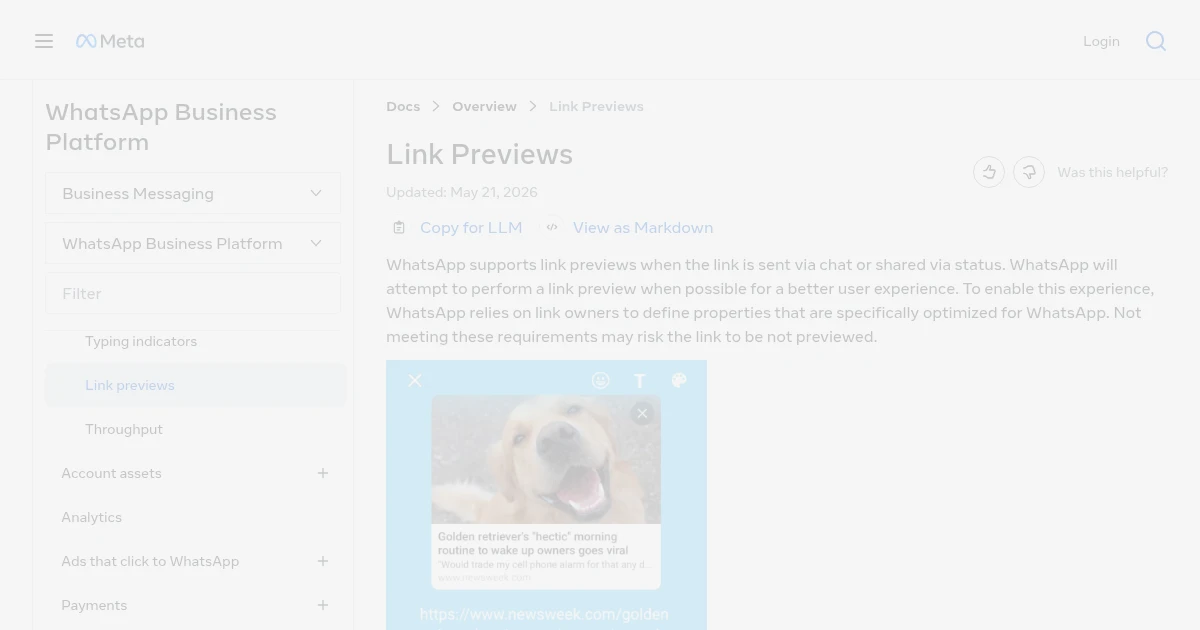
When you paste a link into a WhatsApp chat, it should generate a card with a title, a description, and an image above the text field before you send. When it shows up bare, or with no image, the cause is almost always on the page you linked: it is missing the Open Graph tags WhatsApp reads, the og:image is unreachable or too large, or WhatsApp cached an earlier version of the page. This guide covers the fix, including how to give the card a real image of your page.
First, rule out the recipient's setting
One quick check before you touch your page. WhatsApp has a privacy option, Settings > Privacy > Advanced > Disable link previews, that stops WhatsApp from fetching previews at all. If that toggle is on for you (the sender), no link you send will unfurl, regardless of how the target page is configured. Turn it off and try again.
If previews work for other links but not yours, the setting is not the problem and the fix is on your page. That is the rest of this guide.
How WhatsApp builds a link preview
WhatsApp does not screenshot your page or infer its content. When you paste a URL, WhatsApp fetches the raw HTML and looks for Open Graph meta tags in the <head>. Those tags drive the entire card:
<meta property="og:title" content="Your Page Title" />
<meta property="og:description" content="A one-line summary of the page." />
<meta property="og:image" content="https://yourdomain.com/og.png" />
<meta property="og:url" content="https://yourdomain.com/page" />
og:title and og:description become the text. og:image becomes the picture. If a page has no Open Graph tags, WhatsApp falls back to a plain text link with no card. That is what a "broken" preview almost always is: missing or unreadable tags, not a WhatsApp bug. These are the same tags Facebook created and that LinkedIn, Discord, and iMessage also read, so fixing them helps everywhere at once.
Three details trip people up on WhatsApp specifically:
- WhatsApp reads the raw HTML, not the rendered page. It does not run your JavaScript. If your meta tags are injected client-side (a single-page app that sets them after load), WhatsApp never sees them. The tags must be in the HTML the server sends.
og:imagemust be an absolute, public URL. A relative path like/og.pngwill not resolve, and an image behind a login or a redirect WhatsApp cannot follow renders as no image. Use the fullhttps://yourdomain.com/og.pngand confirm it loads in a private browser window.- Keep the image under 600KB. WhatsApp drops the image from the card, or shows the card without it, when the
og:imagefile is too large or does not meet the minimum dimension ratio. This is stricter than most platforms, so an image that works fine on X can still fail on WhatsApp if it is heavy.
How to fix a WhatsApp link preview
Work through this in order:
- Add the four
og:tags above to the page's<head>, server-rendered. - Set
og:imageto an absolute, public URL that returns an actual image, not an HTML page. - Use a 1200 by 630 image and keep it under 600KB. That is the 1.91 to 1 ratio WhatsApp renders as a full card, within WhatsApp's file-size limit.
- Confirm the tags are in the served HTML. View source on the live URL (or
curlit) and check the tags are present before any JavaScript runs. - Re-send the link to bust the cache. WhatsApp caches per URL on each device, so a change to your tags will not show on a preview that already generated (more on this below).
The one part that is more work than typing four meta tags is producing the image itself, especially if you want it to reflect the actual page rather than a generic logo, and to stay small enough for WhatsApp's limit.
Making the og:image a real render of your page
For a marketing page, a docs page, or a launch announcement, the best preview image is often a clean shot of the page itself. You can produce that with a screenshot API: point it at the URL, get back a hosted image, and use that image as your og:image.
curl https://api.grabbit.live/v1/grabs \
  -H "Authorization: Bearer sk_live_..." \
  -H "Content-Type: application/json" \
  -d '{
    "url": "https://yourdomain.com/og",
    "width": 1200,
    "height": 630,
    "format": "webp",
    "delay_ms": 500
  }'
The response includes a hosted image_url:
{
  "id": "grb_01jx...",
  "status": "done",
  "image_url": "https://cdn.grabbit.live/grabs/grb_01jx....webp",
  "width": 1200,
  "height": 630,
  "format": "webp",
  "bytes": 48210,
  "execution_ms": 1240
}
width accepts 320 to 1920 and height 240 to 1080, so the 1200 by 630 card is in range. format accepts png, jpeg, or webp; webp (or jpeg) keeps the file well under WhatsApp's 600KB limit where a full-color png can run heavy. delay_ms (0 to 10000) gives client-rendered content or web fonts a moment to settle before the capture fires. Drop the returned image_url into your tag:
<meta property="og:image" content="https://cdn.grabbit.live/grabs/grb_01jx....webp" />
Capture once per unique page and cache the image_url alongside the page record rather than rendering on every request. A common pattern is to build a dedicated /og route with your normal components, capture that, and reuse the result everywhere. The same template-and-cache approach is covered in how to generate dynamic OG images from any URL.
The upside of one correct og:image is reach: WhatsApp, Facebook, LinkedIn, X, Discord, and iMessage all read the same 1200 by 630 Open Graph image, so a single tag fixes the preview everywhere at once. The platform-specific steps differ mainly in how you refresh the cache, which is the next section.
Bust WhatsApp's cache by re-sending the link
This is the step people miss. WhatsApp caches the preview locally on each device the first time a URL is fetched. Because there is no server-side scrape, there is no global "re-scrape" button like Facebook's Sharing Debugger or LinkedIn's Post Inspector. If a preview already generated with the wrong image (or none), editing your tags will not update it on its own.
Two ways to force a fresh preview:
- The resend trick. For a link you are about to send, delete the pasted URL from the message box and paste it again. WhatsApp runs a fresh crawl and generates a new preview from your current tags. A quicker variant: erase the last character of the URL and retype it, which nudges WhatsApp to re-fetch.
- The query-string trick. For a link already shared, append a unique query string such as
?v=2(https://yourdomain.com/page?v=2). WhatsApp treats it as a new URL with no cache entry and scrapes fresh. This is the reliable option when the resend trick does not clear a stubborn old preview.
Because the cache lives on each device, someone who saw the old preview may keep seeing it until they re-fetch; a new query string is the cleanest way to guarantee everyone gets the corrected card.
Why your preview still is not showing
If the tags are present, the image URL works in a browser, and you have re-sent the link but the card still looks wrong, run through these:
- The image is over 600KB or the wrong shape. This is the most common WhatsApp-specific failure. Shrink the file (WebP or JPEG), and use the 1.91 to 1 ratio at 1200 by 630.
- The image is behind auth or a redirect. If
og:imagerequires a login, sits behind a paywall, or redirects in a way WhatsApp will not follow, the card renders without an image. Test the raw image URL in a private window. - Tags are set by JavaScript. WhatsApp reads static HTML and does not execute scripts. Server-render the meta tags.
- The recipient disabled link previews. If it fails for one person but works for others, they likely have Disable link previews turned on in Settings, Privacy, Advanced.
Work top to bottom: check the image size and shape first (it is the WhatsApp-specific gotcha), then confirm the image is public, then confirm the tags are server-rendered.
The short version
A WhatsApp link preview is just your page's Open Graph tags, rendered as a card. Add og:title, og:description, og:image, and og:url server-side; make og:image an absolute, public URL at 1200 by 630 and under 600KB; then re-send the link (or append ?v=2) to bust WhatsApp's per-device cache. If you want the image to be a real render of the page instead of a static logo, a screenshot API turns the live URL into the hosted image you point og:image at. The same approach fixes LinkedIn link previews and Discord link previews, and if you are new to the format, start with what is an OG image.
FAQ
- Why doesn't my WhatsApp link preview show?
- The usual cause is on the page you are sharing, not on WhatsApp. WhatsApp builds the preview from Open Graph meta tags (og:title, og:description, og:image) in the HTML head. If the page has no og:image, the tag points at a relative or broken URL, the image is over 600KB, or the tags are set by JavaScript that WhatsApp does not run, no image appears. A separate cause is the recipient having Disable link previews turned on in Settings, Privacy, Advanced. Check that toggle first, then verify the tags on the page.
- How do I get a link preview on WhatsApp?
- Add Open Graph tags to the page's HTML head: og:title, og:description, og:image, and og:url, server-rendered so WhatsApp sees them in the raw HTML. Make og:image an absolute https URL that is publicly reachable and under 600KB, ideally 1200 by 630 pixels. Paste the link into a chat and wait a second or two for the preview card to generate above the text field before you send.
- What size should a WhatsApp link preview image be?
- Use 1200 by 630 pixels, the standard 1.91 to 1 Open Graph ratio, and keep the file under 600KB. WhatsApp fails to show the image, or drops it from the card, when it is too large or does not meet the minimum dimension ratio. The same 1200 by 630 image works for Facebook, LinkedIn, X, Discord, and iMessage, so one og:image covers every platform at once.
- How do I refresh a WhatsApp link preview after changing my OG tags?
- WhatsApp caches the preview locally on each device and gives no global re-scrape tool. For a link you are about to send, delete the pasted URL and paste it again to trigger a fresh crawl. For a link already shared, append a unique query string such as ?v=2 so WhatsApp treats it as a new URL with no cache entry. Editing your tags alone will not update a preview that already generated on someone's device.
- Does WhatsApp read Open Graph tags?
- Yes. When you paste a URL, WhatsApp fetches the raw HTML and reads Open Graph meta tags (og:title, og:description, og:image) to build the preview card, the same tags Facebook created and that LinkedIn, Discord, and iMessage also read. It does not screenshot your page or execute your JavaScript, so the tags must be present in the server-rendered HTML, and og:image must be an absolute, public URL.
Capture any website with one API call
Get a free test key and wire your first request in two minutes.
Written by
Grabbit Team
Screenshots as a service
The team behind Grabbit, the screenshot API for developers and AI agents. We write about web capture, rendering, and automating screenshots at scale.
Keep reading
How to Fix LinkedIn Link Previews (Open Graph for LinkedIn)
Why your LinkedIn link shows up bare or with the wrong image, and how to fix it: add the right Open Graph tags, point og:image at a real 1200x627 render, and force LinkedIn to re-scrape with Post Inspector.
Jun 24, 2026 · 7 min read
Discord Link Previews: How to Make Your Links Unfurl
Why your links show up bare in Discord and how to fix it: add the right Open Graph tags, point og:image at a real 1200x630 render, and force Discord to re-fetch the metadata.
Jun 21, 2026 · 6 min read
What Is an OG Image? Why Your Shared Links Look Broken
An OG image is the preview image that appears when a link is shared on social media. Learn what it is, why it breaks, and how to automate one per page.
Jun 13, 2026 · 5 min read