Capture guides
How to Convert a Webpage to JPG (URL to JPG Image via API)
August 3, 2026 · 7 min read · Grabbit Team
To convert a webpage to a JPG, send the page URL to a screenshot API with the format set to jpeg, and it returns a hosted JPG image. One HTTP request in, one image URL out. The headless browser that renders the page runs in the cloud, so there is no converter to install and no local Chrome to babysit.
That is the fast path. Below is the whole request, an important distinction the search results blur, when JPG is actually the right format, and how to get full-page and dimension options right.
The quick answer
If you just want a URL turned into a JPG from your code, this is the whole thing:
curl https://api.grabbit.live/v1/grabs \
  -H "Authorization: Bearer sk_live_..." \
  -H "Content-Type: application/json" \
  -d '{
    "url": "https://example.com",
    "width": 1280,
    "height": 720,
    "format": "jpeg"
  }'
The response is JSON with a hosted image_url:
{
  "id": "grb_01jx...",
  "status": "done",
  "target_url": "https://example.com",
  "image_url": "https://cdn.grabbit.live/grabs/grb_01jx....jpeg",
  "width": 1280,
  "height": 720,
  "format": "jpeg",
  "bytes": 61240,
  "execution_ms": 910,
  "created_at": "2026-08-03T09:00:00.000Z"
}
Store that image_url, embed it, or hand it to another service. Note the format value is jpeg, not jpg. They mean the same file, but the API takes the spelled-out jpeg.
First, the distinction that matters
Search for "webpage to jpg" and the results split into two jobs that sound alike but are opposites. Getting the wrong one wastes your time.
File conversion (not this). Most of the top results, like iLoveIMG, CloudConvert, Adobe Express, and Canva, are WebP-to-JPG converters. You upload an image file you already have, and they change its format. The input is a picture. If you already own a .webp and want a .jpg, that is your tool, and you do not need an API for it.
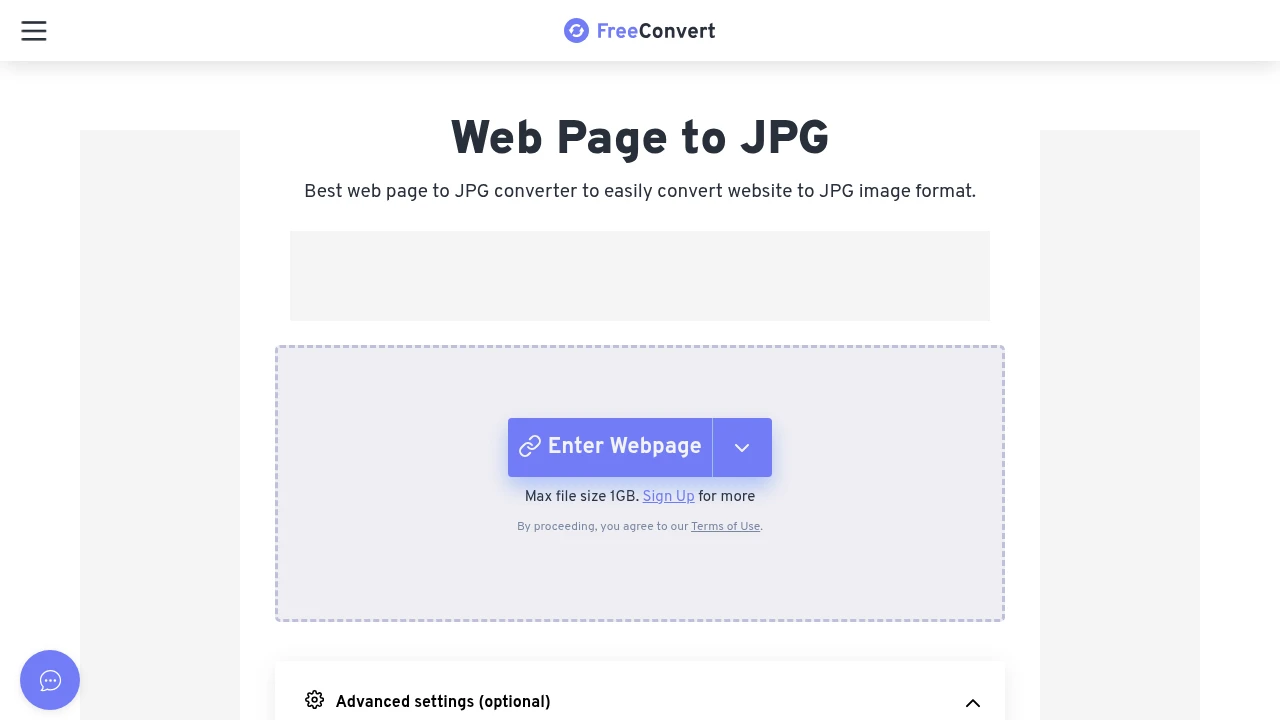
URL to image (this). You have a web address, not a file, and you want a picture of the live page as it renders. FreeConvert's "Web Page to JPG Converter" and the "convert HTML webpage to JPG" how-tos are this job. The input is a URL. The page has to be loaded in a browser, laid out, and captured, and that is what a screenshot API does.
This guide is about the second job: URL in, JPG out. If you have an image file and just need a format change, use one of the file converters above and move on.
Converting a webpage URL to JPG with an API
For anything repeatable, a screenshot API is the shortest path. You already saw the curl call. Here is the same request in a couple of languages, since "how do I do this in my stack" is the real question.
Python, using requests:
import requests

resp = requests.post(
    "https://api.grabbit.live/v1/grabs",
    headers={"Authorization": "Bearer sk_live_..."},
    json={
        "url": "https://example.com",
        "width": 1280,
        "height": 720,
        "format": "jpeg",
    },
)
data = resp.json()
print(data["image_url"])
Node.js, using the built-in fetch:
const resp = await fetch('https://api.grabbit.live/v1/grabs', {
  method: 'POST',
  headers: {
    Authorization: 'Bearer sk_live_...',
    'Content-Type': 'application/json',
  },
  body: JSON.stringify({
    url: 'https://example.com',
    width: 1280,
    height: 720,
    format: 'jpeg',
  }),
});
const data = await resp.json();
console.log(data.image_url);
Every one of these is a plain HTTP call. No chromedriver, no 300 MB Chromium download, no async browser session to tear down afterward. That is the whole reason to reach for an API over a local converter: the rendering machinery lives somewhere else. The screenshot from URL guide walks through the same call in more detail if you are wiring it up for the first time.
When JPG is the right format (and when it is not)
The format field takes png, jpeg, or webp, and picking jpeg is a deliberate choice. JPG earns its place in two situations:
- File size is the priority. JPG produces the smallest file of the three formats, which matters when you are storing thousands of captures or when a full-page shot of a long page would otherwise be several megabytes. The tradeoff is lossy compression, so fine text can soften slightly at low quality.
- You need universal support. Every browser, CMS, email client, and image pipeline handles JPG without a second thought. It is the safe default when you do not control where the image ends up.
Reach for a different format when:
- You need lossless output or transparency. Use PNG. For a visual regression baseline the image has to be byte-stable so a real UI change is the only thing that produces a diff, and JPG's compression can shift a few pixels between renders. The website to PNG guide covers that case.
- You want small files without the JPG artifacts. Use WebP. It compresses better than JPG at similar visual quality, which is why it is a good default for large libraries of screenshots. The webpage to image guide compares all three formats side by side.
Switching is a one-word change in the request body, so you can render the same page as jpeg, png, and webp and compare the file sizes on your own pages before committing.
Capturing the full page, not just the viewport
By default a capture stops at the viewport height you request. To convert the entire scrollable page into one tall JPG, set full_page to true:
curl https://api.grabbit.live/v1/grabs \
  -H "Authorization: Bearer sk_live_..." \
  -H "Content-Type: application/json" \
  -d '{
    "url": "https://example.com",
    "width": 1280,
    "full_page": true,
    "format": "jpeg"
  }'
With full_page on, height is ignored and the render extends to the bottom of the document. This is where JPG pulls ahead: a full-page capture of a long landing page or article can be very tall, and JPG keeps that file small where PNG would balloon. The full-page screenshot guide covers the edge cases like lazy loading and sticky headers.
width must be between 320 and 1920 pixels, and height between 240 and 1080. If the page renders content client-side after load, add "delay_ms": 1500 to wait before the capture fires, or "selector": "#main" to wait for a specific element to appear.
When a local converter is the better call
An API is not always the answer. Render locally instead when:
- You already have a full HTML string, not a URL. If the markup lives in your app and never gets served at an address, a local
page.screenshot()in Puppeteer avoids a round trip. See HTML to image for that pattern, including the trick of hosting your template at a URL and then capturing it. - You are doing a single manual capture. In Chrome or Edge, open the command menu with Ctrl+Shift+P (Cmd+Shift+P on Mac), type "screenshot," and choose "Capture full size screenshot," then save the result.
- You cannot make outbound requests. In an air-gapped environment an API is off the table, so a bundled headless browser is the only option.
For everything else, especially anything that runs on a schedule or in CI, the API path keeps your deployment small and removes an entire class of "it works locally but not in the container" failures.
Next steps
The automated screenshots guide covers scheduling, async jobs, and webhooks for turning many URLs into JPGs in a pipeline. For the full format comparison, see webpage to image, and for the lossless alternative, website to PNG.
FAQ
- How do I convert a webpage to a JPG?
- Send the page URL to a screenshot API with the format set to jpeg, and it returns a hosted JPG. One POST request with the target URL and format gives you back an image_url pointing at a rendered image of the page. The headless browser runs in the cloud, so there is nothing to install locally and nothing to keep alive.
- Is converting a webpage to JPG the same as converting a WebP file to JPG?
- No, they are opposite jobs. A WebP-to-JPG converter takes an image file you already have and changes its format. Converting a webpage to JPG starts from a URL, renders the live page in a real browser, and returns a new image. If you have a URL and want a picture of the page, you need the second one, which is a screenshot API rather than a file converter.
- When should I use JPG instead of PNG or WebP for a webpage screenshot?
- Use JPG when file size matters most and the capture is photographic or a long full-page shot, since JPG produces the smallest file of the three and is supported everywhere. Use PNG when you need lossless output or a stable visual-testing baseline, and WebP when you want a smaller file than PNG at similar quality. A screenshot API lets you pick per request with a format field, so switching is a one-word change.
- Can I convert a full webpage, not just the visible part, to a JPG?
- Yes. Set full_page to true and the capture extends to the full scrollable height of the page instead of stopping at the viewport. The result is one tall JPG that includes everything below the fold, exactly as it renders in a real browser. JPG is a good fit here because full-page captures get large and JPG keeps the file small.
- How do I convert a webpage link to a JPG programmatically?
- POST the URL to a screenshot API from any language that can make an HTTP request. Pass the URL and format jpeg in the JSON body and your API key in the Authorization header. The response includes an image_url you can store or serve directly. No browser binary, no chromedriver, no local converter to maintain.
Capture any website with one API call
Get a free test key and wire your first request in two minutes.
Written by
Grabbit Team
Screenshots as a service
The team behind Grabbit, the screenshot API for developers and AI agents. We write about web capture, rendering, and automating screenshots at scale.
Keep reading
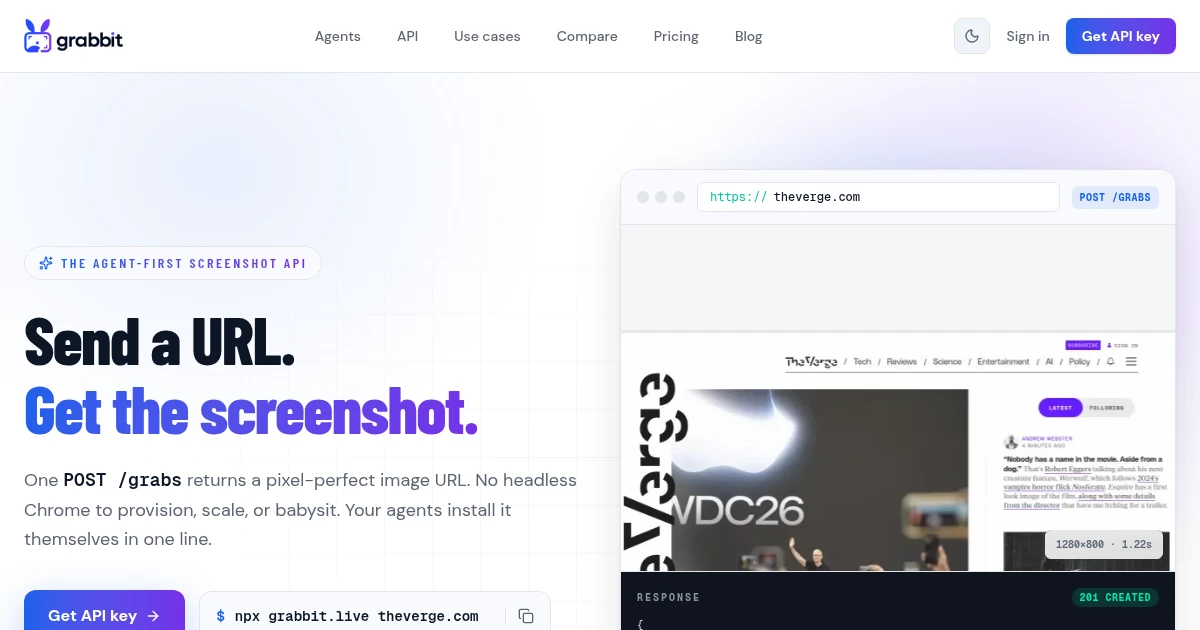
How to Convert a Webpage to an Image (URL to JPG, PNG, or WebP)
Turn any URL into a hosted JPG, PNG, or WebP image with one API call. No headless Chrome to install, no local converter, and the format and full-page options developers actually need.
Jul 1, 2026 · 6 min read
How to Convert a Website to PNG (URL to PNG Image via API)
Turn any URL into a hosted PNG with one API call. When PNG is the right format over WebP or JPEG, how to capture the full page, and why lossless output matters for visual testing.
Jul 7, 2026 · 6 min read
How to Screenshot a Website from a URL (No Browser Needed)
Skip the headless browser setup. Learn the three ways to capture a screenshot from a URL, and when a screenshot API beats Puppeteer or Playwright for production workloads.
Jun 15, 2026 · 7 min read